Verify many invoices at once
Select every invoice that's ready and verify them together.
Also known as: select all · verify all · bulk approve · batch verify · mass approve · approve all · multi select · tick all · clear backlog
After a busy week you might have a dozen invoices that all checked out. Instead of opening each one, select them in the invoice list and verify them in one go. Only invoices that pass every check are verified. Anything flagged is set aside for you to look at.
Select and verify
- Tap Purchases, then the Invoices tab.
- Set the dates at the top so the invoices you want are in the list.
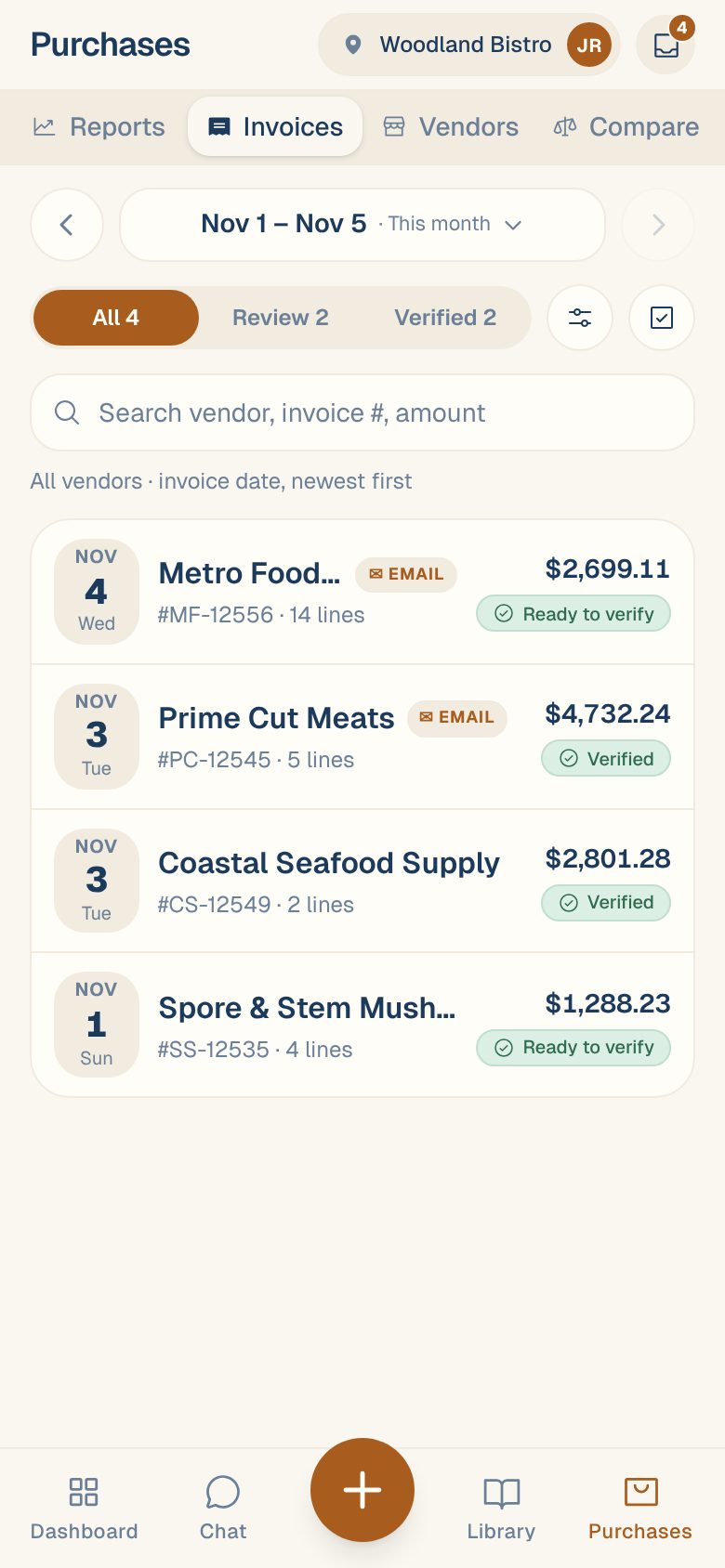
- Tap the select button next to Filter (a box with a tick). It only shows when there are invoices to review.
- Tap All ready to pick every invoice that passed its checks. Or tap invoices one by one, or All to review to pick everything waiting.
- Tap Verify N at the bottom. Next to it, the bar shows how many of your picks are ready and how many are flagged.
- Check the Verify invoices sheet, then tap Verify N invoices.
While Maitaki refreshes the checks you’ll see Refreshing checks…. Wait for it to finish so the ready count is right.
What the sheet shows
| You’ll see | What it means |
|---|---|
| N ready — verified on confirm | These pass every check. Tap the row to see which invoices they are. |
| Creates N new ingredients | Lines that aren’t linked yet become new ingredients, the same as when you verify one invoice. Tap to see the names. |
| N need review | These have a problem, so the button won’t verify them. Each one lists why. |
The reasons under N need review are short:
| Reason | What to do |
|---|---|
| Possible duplicate | Compare it with the one on file. See Duplicate invoices. |
| No vendor | Pick the vendor. See Change an invoice’s vendor, number, date or total. |
| Doesn’t reconcile or Rows missing | See When the lines don’t add up to the total. |
| N low confidence or N math | See Fix a line on an invoice. |
| N can’t price | See Fix “Can’t price” and “Needs pack” lines. |
| N prices to check | See Handle “Price looks off”. |
| Checking prices… | Maitaki is still comparing prices. Try again shortly. |
Work through the flagged ones
After verifying, the sheet shows how many were verified. If some were flagged, tap Review the N flagged. (If none of your picks were ready, the button is Review N flagged instead.) Maitaki opens the first one with Reviewing 1 of N at the top. Fix it and verify it, and the next one opens. Tap Skip → to leave one for later.
Only verify what you’d sign for. Bulk verify trusts the checks. If you haven’t looked at an invoice at all, open the Creates N new ingredients list first so you know what’s being added.
Common questions
Some invoices are greyed out and I can't tick them.
Those are already verified. Only invoices waiting for review can be selected.
Can I verify a flagged invoice from the list anyway?
No. Flagged invoices are never verified by the button. Open each one, fix it or tap Looks fine on the check, then verify it. See Review and verify an invoice.
Can Maitaki do this for me?
Yes. A Manager can turn on auto-verify so invoices that check out are verified as they arrive. See Let Maitaki verify invoices for you.