Set up departments
Group your staff into departments like Kitchen and Front of house, so labor reports, the timesheet and digests split hours and cost the way you think about them.
Also known as: sections · teams · foh · boh · kitchen · front of house · back of house · job titles · unassigned · labour split · groups
Departments let you see labor by team: how much the kitchen costs against the front of house, for example. Labor reports, the timesheet and digests split hours and cost by your departments, in the order you set. Until you add one, every labor screen and digest stays as it is.
There are two ways someone ends up in a department:
- By job title. Give a department job titles, like Line Cook and Dishwasher for Kitchen. Each shift counts in the department of the job worked. Someone who works a server shift and a bartender shift is split between the two.
- By person. Put someone in a department yourself, and all their shifts, salary and bonus count there, whatever job they worked.
A person you put in a department always wins over job titles.
Add a department
-
Open the account menu (your location and avatar, top right on a phone; bottom left on a computer) and tap Settings.
-
Tap your location, then Departments under People.
-
Tap Add department.
-
Enter a Name, like Kitchen.
-
Add a Short name (optional), like BOH. It’s used on chips and narrow screens.
-
Pick a Colour.
-
Under Job titles, tick the jobs that belong here. A job another department already has shows in that department; ticking it moves it here from today.
-
If you ticked a job for the first time, choose Counts from: All past days re-splits past reports, From today leaves earlier days as they are.
-
Tap Save.
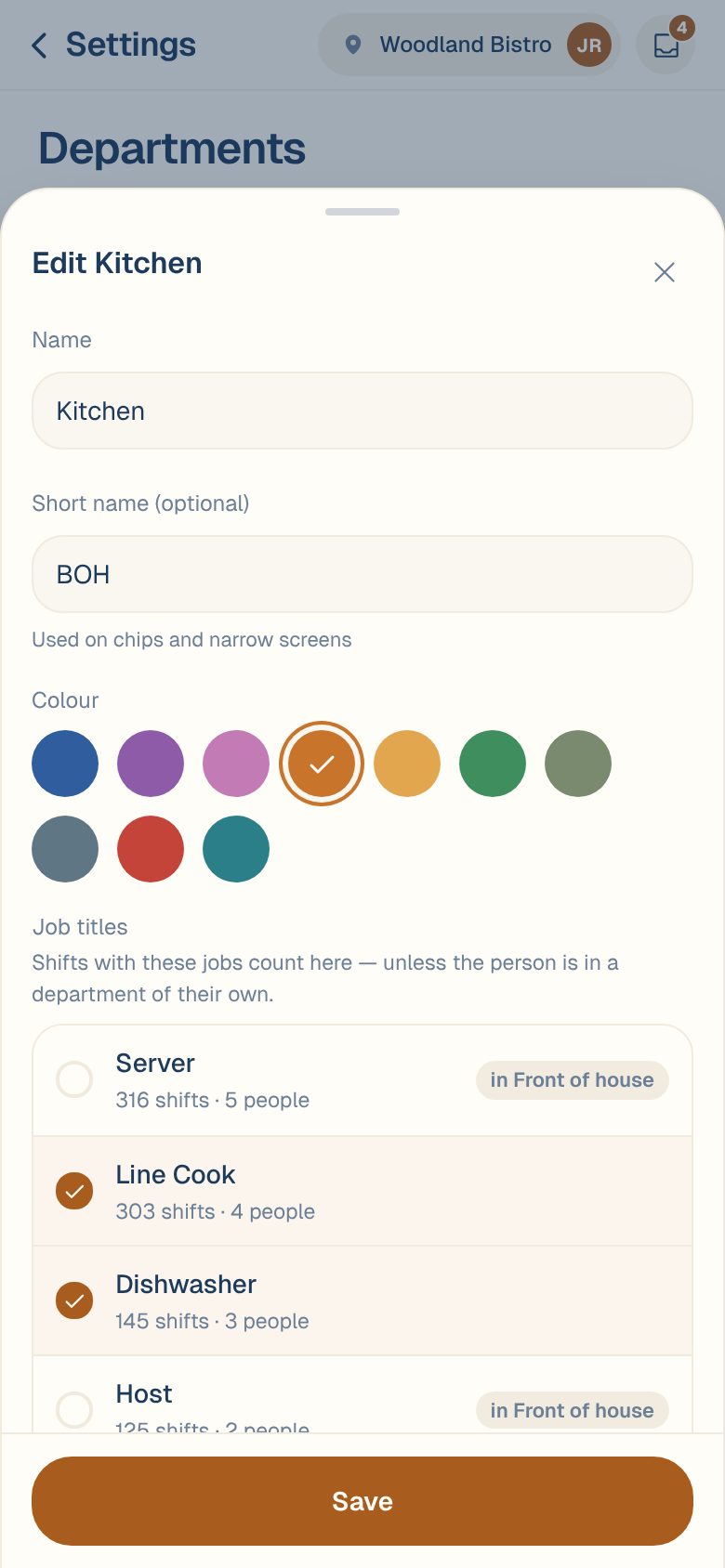
Departments save straight away. There’s no separate Save for the page.
Put the departments in order
Departments appear in reports in the order on this page. Use the up and down arrows on a row to move it. You’ll see Order saved, with Undo if you change your mind.
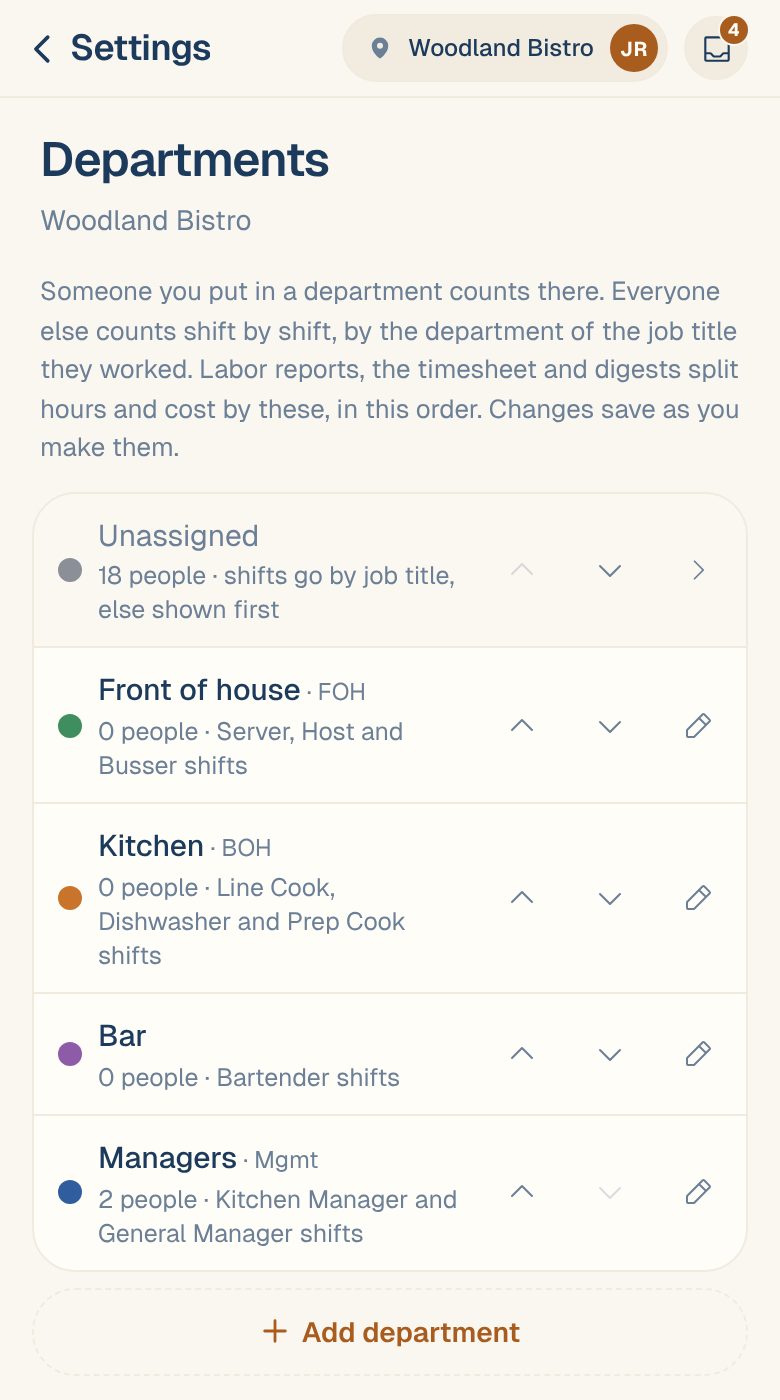
Unassigned is everyone who isn’t counted anywhere else. You can move it up or down, but not rename it. Tap it to see who’s in it.
Put a person in a department
- On the Roster, tap the person.
- On the Department card, tap Choose, Change or Pin to a department.
- Pick the department.
- Under Starting, choose Today, Pay period start or Pick a date. Days before that stay where they were.
- Tap Save · from today, or Save · from the date you picked.
To move several people at once, tap Select on the roster, tap each person, then Assign department. Pick the department and start date, then tap the button that confirms the move, like Move 2 to Kitchen from today.
Common questions
How do I go back to counting someone by job title?
On their Department card, tap Use job titles instead and confirm. Their shifts count by job title from today; earlier days stay where they were.
How do I remove a department?
Tap the pencil next to it, then Archive department, and confirm. Its people move to Unassigned from today, and past reports keep showing it.
It says "No job titles from your time-tracking source".
Your timesheets don’t include job titles, so departments can’t be set by job. Put people in departments one by one from the roster instead.
Who can set up departments?
Managers, Admins and Owners. Everyone else sees Only managers of this location can set up departments.