Link POS items to your menu
Tell Maitaki which dish each item on your POS is, so its sales count toward that dish's profit.
Also known as: toast items · map pos · unlinked items · coverage · item mapping · pos buttons · match sales to dishes · menu mapping
Your POS has its own list of items, and their names don’t always match your menu: Fountain Coke, Coke, Soda. Linking each POS item to a dish on your menu is what lets Maitaki add up each dish’s real sales and profit.
Menus built with Build a menu from your POS sales come linked already. This screen is for anything left over, and for menus you made by hand or scanned.
Open POS items
- Open Sales from your Dashboard, then tap the Menu tab. See Find your sales.
- Tap Link POS items to your menu.
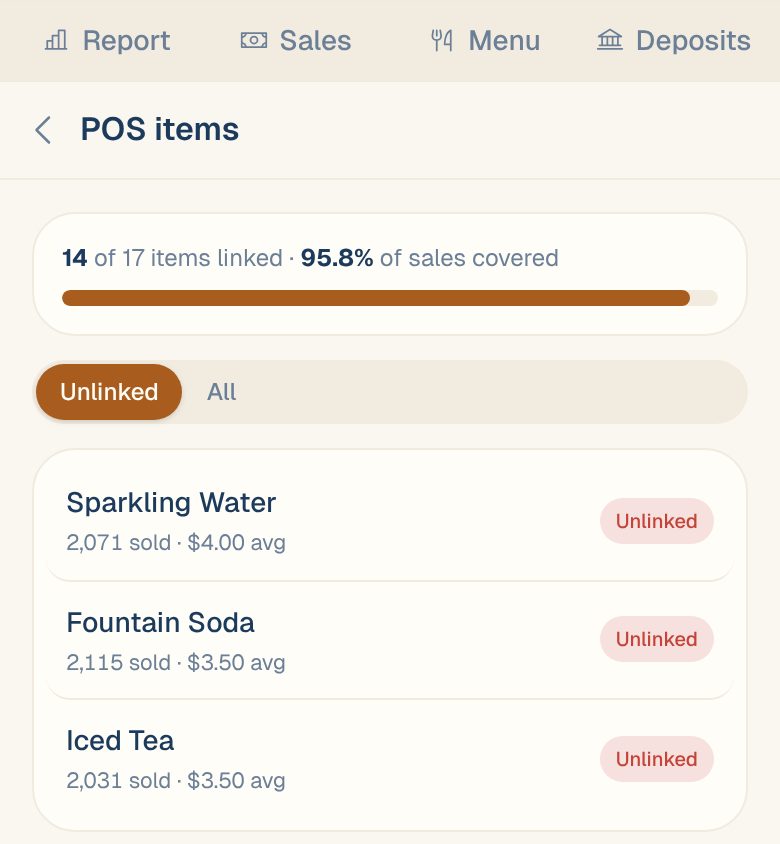
At the top you’ll see how many POS items are linked and how much of your sales they cover. The list shows items that sold in the last year, with how many sold and their average price.
Link an item
-
Tap an item marked Unlinked.
-
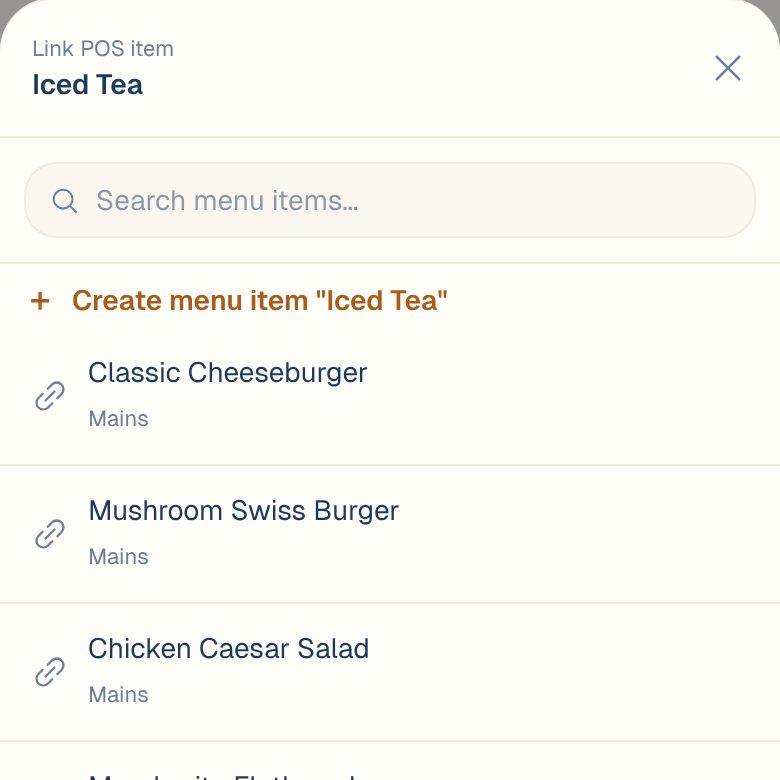
Search for the dish in Search menu items… and tap it.
The item now shows an arrow and the dish’s name. Several POS items can link to the same dish, which is how you combine Coke and Fountain Coke.
If the dish isn’t on any menu yet, tap Create menu item instead. It’s added at the item’s average price.
Change or remove a link
Tap All to see linked items too. Tap one, then either pick a different dish, or tap Unlink next to Currently →.
Common questions
Do I need to link every item?
No. Focus on what sells. The % of sales covered tells you how much of your revenue is linked already.
The list is empty.
If you’re on Unlinked, everything that sold is linked. If All is empty too, no item sales have come in from your POS in the last year. Item-by-item sales need a POS such as Toast. See Connect your Toast POS.
Who can link POS items?
Managers, Admins and Owners. See Roles: who can do what.