Add a deposit slip
Photograph the bank slip when you deposit cash. Maitaki reads it and matches it to the days it covers.
Also known as: bank slip · deposit ticket · scan slip · take cash to bank · bank receipt · deposit receipt · cash drop · bank run · night deposit · record deposit
Each time someone takes cash to the bank, add the slip in Maitaki. Maitaki reads the amount, date and account, finds the days the cash came from, and marks those days as deposited. Any difference from the expected cash shows up straight away.
Deposit slips need cash deposit tracking turned on for the location.
Photograph the slip
-
Tap the round + button at the bottom of the screen, then Deposit slip. Or, on Deposits, tap the Cash tab, then Add deposit slip.
-
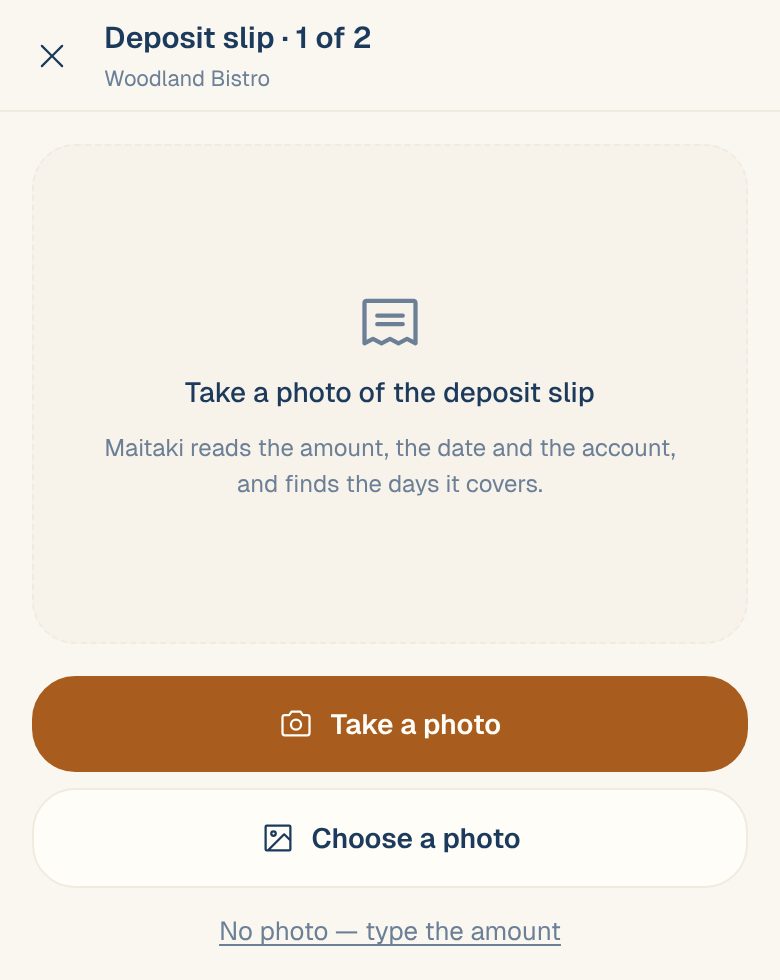
Tap Take a photo, or Choose a photo if you already have one.
-
Maitaki shows We read with the amount, the date deposited, and the bank and account if it could see them. Under For are the days it thinks the slip covers.
-
If it’s all right, tap Yes, that’s right. If not, tap Fix, correct the Amount deposited, Date deposited, Bank or Account · last 4, then tap Next · find the days.
If a line asks you to Check the date, Check the amount or Check the account number, look closely at the slip before you go on. You can also tap Retake, or Add back of slip to keep a photo of the back.
No photo? Tap No photo — type the amount and fill in the details yourself.
Write the days on the slip. If the slip says which days it’s for, like “for 10/9–10/12”, Maitaki reads that first and uses those days.
Check the days it covers
Step 2 shows the Best match: the days, what each one gets from the slip, and whether each is matched, short or over.
- To use it, tap Save · 3 days deposited (the number is how many days).
- To pick other days, tap Change days and tap them on the calendar: a first and last day for a range, or single days. Days already in the bank are greyed out.
- To put a set amount on each day, tap Split by hand, type the amounts, and tap Save split. The days must add up to the slip.
With Toast, a Split by switch lets you split the slip by Toast’s count at close or by Expected cash.
If part of the slip isn’t assigned to a day, the button changes to Split by hand with the amount left to assign.
After you save
The slip opens on its own page with the photo, each day’s amount and any difference. The days it covers leave the waiting list on the Cash tab, and the slip appears under Deposited with matched, short or over.
When a day is short or over, you can give it a reason. Tap add a reason or change next to it. See Expected cash, short and over.
Fix or remove a slip
Open the slip from the Cash tab.
- Edit split changes which days it covers and how much each gets.
- Undo takes the slip out and puts its days back to waiting. You can undo a slip you saved yourself within 10 minutes.
- After that, a Manager or above can Edit split or Remove it.
Common questions
It says it looks like a slip I already saved.
Maitaki spotted the same photo, or a slip for the same amount and account within a few days. Tap Open it to see the earlier one. If it really is a different slip, tap It’s a different slip.
It says the slip is for a different account.
The last 4 digits don’t match the account set for this location. Check you’re on the right location. If the slip is right, tap Save to this location anyway.
Why wasn't today on the slip?
When Maitaki knows the deposit time, read from the slip or typed under Fix, it leaves out any day that hadn’t closed yet when the deposit was made. A slip made at 2 PM can’t hold that night’s cash.
One day's cash went in on two slips.
That’s fine. Put part of the day on each slip with Split by hand. Whatever isn’t covered stays waiting until the next slip.