Fix a line on an invoice
Correct a quantity, price or line type, or remove a line.
Also known as: line item wrong · quantity wrong · price wrong · fee · surcharge · remove line · misread · wrong amount · delivery charge · fuel charge · row
Each row on an invoice is a line: what you bought, how many, the price and the amount. When Maitaki misreads one, the price it works out for that ingredient is wrong too, so it’s worth fixing before you verify. You can also change what kind of line it is, like a fuel surcharge that was read as a product.
Correct the quantity, price or description
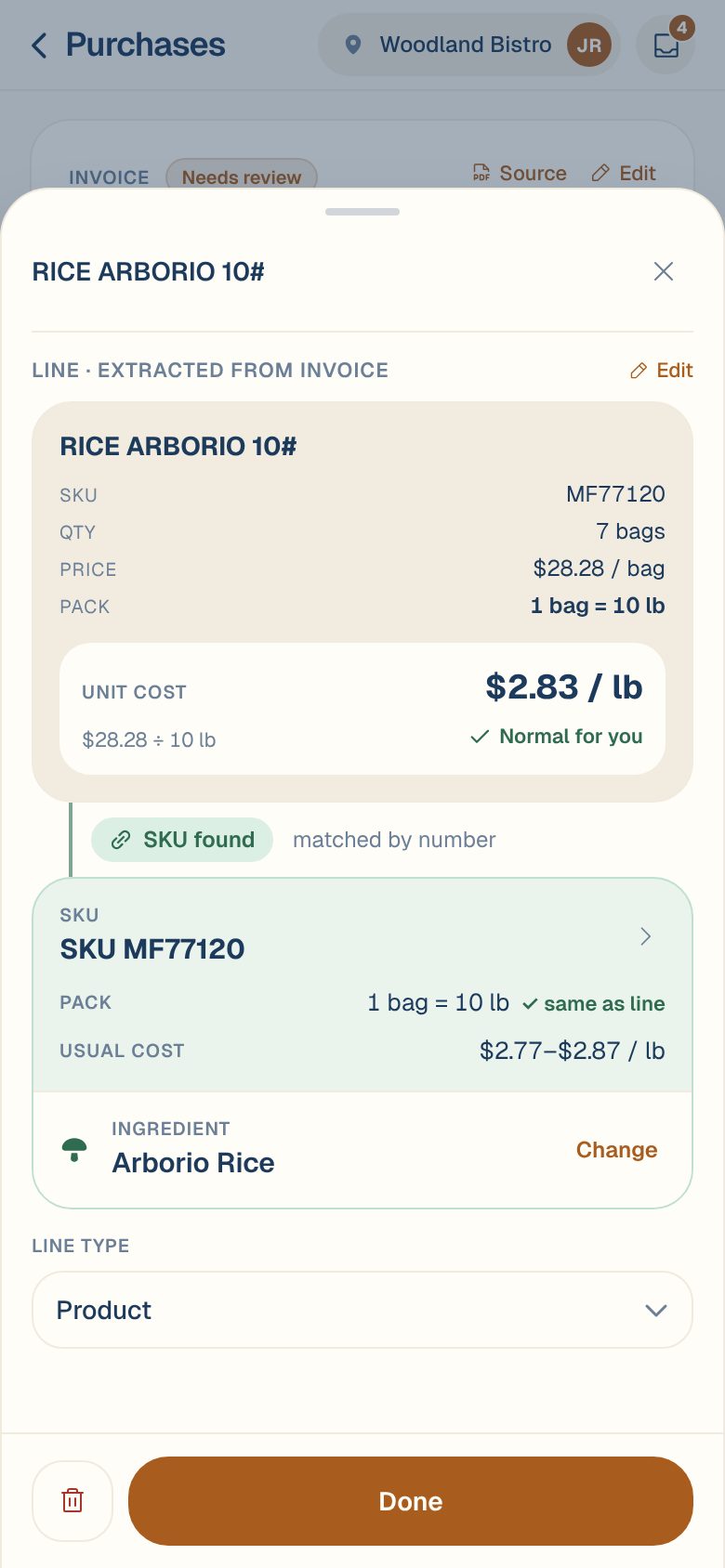
- On the invoice, tap the line. Its details open in a sheet.
- Next to Line · extracted from invoice, tap Edit.
- Correct the SKU, Description, Qty, Unit or Price so they match the paper.
- Tap Save.
Price is the price for one unit you bought, such as one case, not the line’s amount. Maitaki checks that quantity × price equals the line’s amount. If it doesn’t, you’ll see Price doesn’t reconcile with the price it should probably be. That usually means the price came from the wrong column.
In the line’s details you’ll also see its Unit cost: the price per pound, gallon or each that goes into your ingredient prices, and how it was worked out.
If you correct the SKU (the vendor’s item number), Maitaki matches the line to the product with that number from this vendor, and to its ingredient.
Saving a line counts as checking it. Once you’ve saved a correction, a Low confidence flag on that line clears. If a low-confidence line was read right, you don’t need to change anything: tap Looks fine on that check when you verify.
Weighed items
Meat, cheese and other items sold by catch weight are billed by the pound, not by the case. You’ll see them as, for example, 12.4 lb @ $3.10/lb. For these lines the Price is the price per pound, and Maitaki checks the weight × the price per pound against the amount.
Change what kind of line it is
Not every line is a product. Delivery fees, fuel surcharges, tax and bottle deposits count toward the invoice total but aren’t ingredients.
- Tap the line.
- Under Line type, pick Product, Fee, Tax or Deposit.
- For a fee, tax or deposit, check the Description and Amount.
- Tap Save.
A line that isn’t a product shows its type, such as Fee, and isn’t linked to an ingredient.
Remove a line
Managers, Admins and Owners can delete a line that shouldn’t be there, like a heading or subtotal read as an item.
- Tap the line.
- Tap the trash button at the bottom left.
- Tap Delete to confirm.
Removing a line changes what the lines add up to, so check the Totals reconcile check afterwards.
What the line chips mean
| You’ll see | What it means |
|---|---|
| qty × price ≠ amount | Quantity, price or amount was misread. Fix it as above. |
| Low confidence | Maitaki wasn’t sure it read this line right. Compare it with the original. |
| Needs pack or Unit doesn’t convert | Maitaki can’t work out a unit price. See Fix “Can’t price” and “Needs pack” lines. |
| Check price | The price is far from what you usually pay. See Handle “Price looks off”. |
| Check match | The line was linked to an ingredient but Maitaki wasn’t certain. See Link a line to the right ingredient. |
| No SKU | No item number was printed. This is only a note and never holds the invoice. |
Common questions
A line is missing altogether.
How do I compare the line with the paper?
Tap Source at the top of the invoice on a phone, or look at the scan on the left on a computer. See See the original photo or PDF.
I tap a line and nothing happens.
You have Viewer access, which can read invoices but not change them. See Roles: who can do what.