DoorDash and Slice fees and payouts
Bring in DoorDash's own files to count its sales after fees, check every order against your POS, and track payouts.
Also known as: doordash fees · commission · payout report · slice · after fees · net of fees · merchant portal · doordash statement · error charge · delivery fees
Your POS shows what DoorDash orders were rung up for. It doesn’t know what DoorDash took in fees, which orders never reached the POS, or when the money lands. For that, Maitaki reads DoorDash’s own files. Slice works the same way.
Set it up
Connecting DoorDash or Slice for fees and payouts takes a few steps on our side. Email support@maitaki.ai with your location’s name and we’ll set it up with you.
Once it’s connected, it shows under Third-party in Settings › your location › Sales, with when the last file came in.
Choose how it counts
On the DoorDash page in Settings › your location › Sales, a Manager picks how it Counts in sales:
| Setting | When to use it |
|---|---|
| Already in my POS | DoorDash orders are sent into your POS. Sales stay as your POS has them; DoorDash adds its fees, tax, payouts and a check of every order. |
| Adds to sales | DoorDash orders never reach your POS. Their sales, tax and tips are added to each day. |
Pick a Starting from date and save. Days from then are recounted in the background, and Recount done shows when they’re finished. Each day counts by the setting that applied that day, so nothing is counted twice.
Sales after fees
Once DoorDash’s file for a day is in, its part of your net sales is what DoorDash pays you: the order subtotal less its fees. That’s tagged ✓ Post-fees. Until the file arrives, the day uses your POS’s amount, tagged Pre-fees.
| Where | What you’ll see |
|---|---|
| Report summary | DoorDash fees between gross and net sales, and incl. DoorDash · 8 orders · post-fees under Net sales. |
| 3rd party platforms card on the report | Gross sales, Fees, Tips, Total collected and Post-fees. Tap a row for each kind of fee. |
| Day list on the Sales tab | DoorDash $353.22 post-fees · 8 orders, and how many need fixing in the POS. |
DoorDash pays the sales tax on its orders itself, so it’s never in your tax.
The DoorDash check
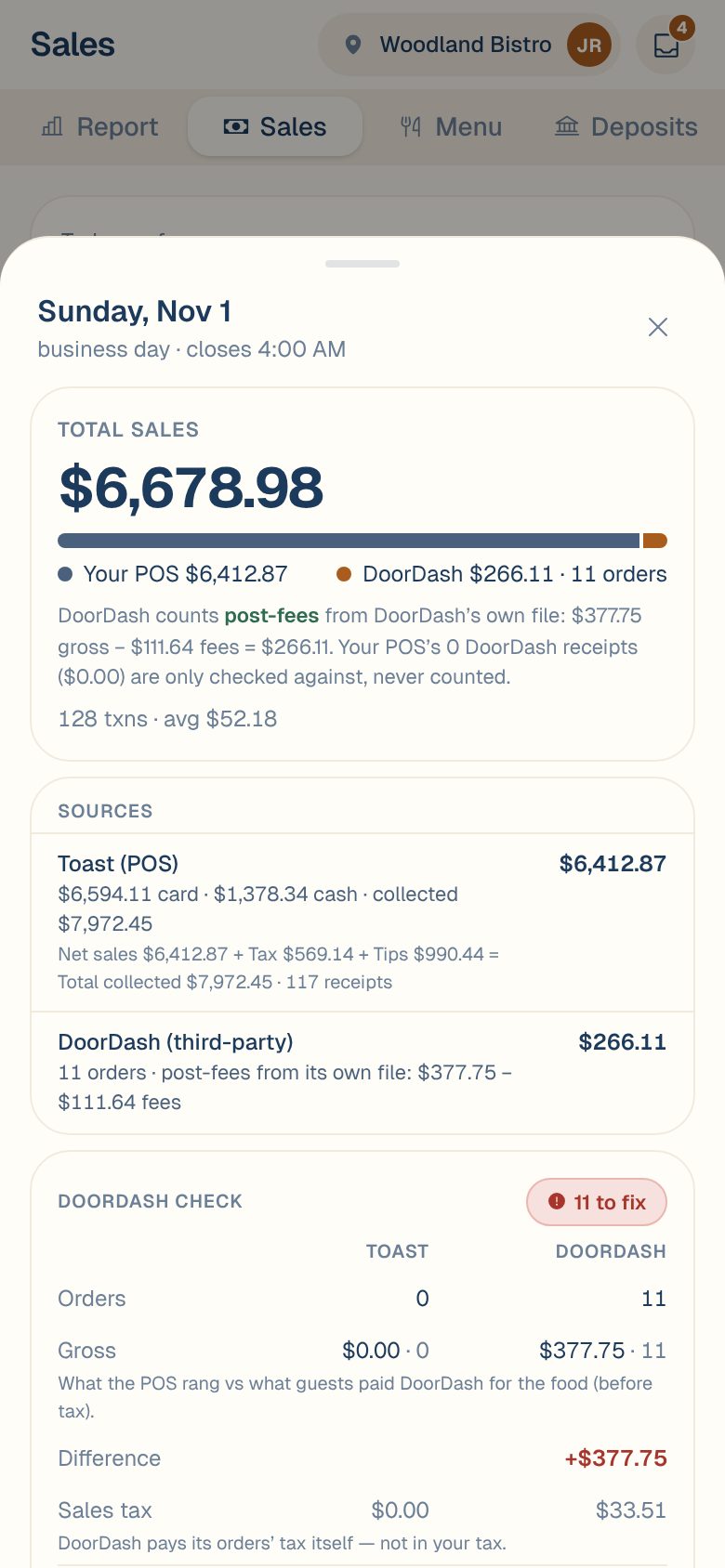
Each day with a DoorDash file gets a DoorDash check on its day sheet. It compares your POS’s DoorDash receipts with DoorDash’s orders, at your menu prices.
| Status | What it means |
|---|---|
| Matches to the cent | Every order is in both. |
| Explained | Differences come from prices, like DoorDash’s app prices being above your menu. |
| A number to fix | Some orders are on one side only. Look at the red cards. |
Red cards are the ones to act on:
- not rung in the POS · counted — DoorDash paid it, so it counts in net sales, but it isn’t in your POS.
- no DoorDash order found · left out of net sales — a POS receipt paid as DoorDash that DoorDash has no order for.
- DoorDash cancelled it — the order was cancelled on DoorDash but is still in your POS.
On a day with DoorDash orders, filters above the day’s list let you show All, Card, Cash, DoorDash or To check.
One order
Tap a DoorDash order in the day’s list or the check. You’ll see:
- Subtotal (what guests paid), your menu price if it differs, and each fee.
- Post-fees · what lands.
- Tax (paid by DoorDash).
- The payout: Paid out with its date and payout number, or Pending payout with the expected day.
- In your POS: the receipt it matched, with Open receipt ›, or not in POS.
Common questions
Where do I track when DoorDash pays me?
On the Deposits tab. See Track delivery-app payouts.
A day says DoorDash orders appear once its file arrives.
DoorDash’s file for a day comes in after you close. Until then, the day uses your POS’s amounts (Pre-fees). It switches to post-fees on its own when the file is in.
What about Uber Eats and Grubhub?
Their orders in your POS already show in your sales. See DoorDash and other apps in your sales.