Connect your Toast POS
Create Toast API credentials and paste them into Maitaki. Your full order history fills in from the start.
Also known as: toast api · client secret · restaurant guid · toast web · toasttab · integration · point of sale · link toast · sync sales · pos setup
Once Toast is connected, your sales show up in Maitaki on their own: every check, payment, tip and refund, on the business day Toast gives it. Maitaki only ever reads from Toast. It can’t change anything there.
You’ll need three things from Toast: a Client ID, a Client Secret and your Restaurant GUID.
Get your details from Toast
- Sign in to Toast Web on a computer and open Integrations.
- Create Standard API credentials with the orders:read scope.
- Copy the Client ID and Client Secret somewhere handy.
- Copy your Restaurant GUID too. It’s a long code like
82d0af38-763c-49ac-aeff-624f40e7cf42.
Keep the secret private. Anyone with it can read your sales. Maitaki stores it write-only, which means nobody, including us, can view it again after you save it.
Connect it in Maitaki
-
Open the account menu (your location and avatar, top right on a phone; bottom left on a computer) and tap Settings.
-
Tap the location you’re connecting, then Sales under Connections.
-
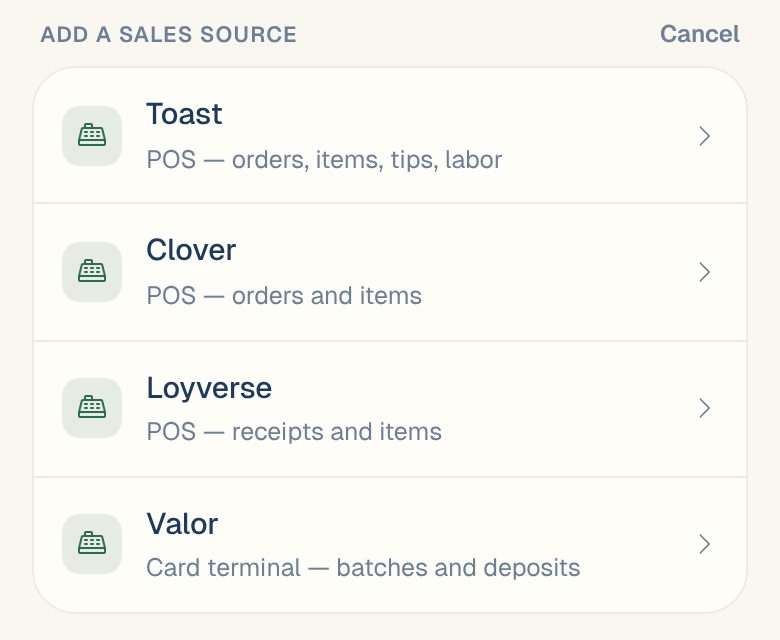
Tap Connect a sales source, then Toast.
-
Give it an Account label so you can tell it apart later, like Main dining room.
-
Paste your Client ID, Client Secret and Restaurant GUID.
-
Leave API host blank.
-
Tap Test connection. You should see Connected ✓ with your restaurant’s name.
-
Tap Save & backfill full history.
Maitaki starts pulling in your past orders straight away. Recent days appear first. While older history fills in, the source shows ⏳ Backfilling history — reached a date. When it’s done, it shows ✓ Full history synced and how far back it goes.
Check your timezone matches
After the test, Maitaki shows the timezone Toast uses for your restaurant. Make sure your location in Maitaki uses the same one, or sales times can look off by hours. See Set your business day and timezone.
How often it updates
- Every day at the time shown next to Daily on the account card. You can change it.
- Whenever you open Sales, if it’s been more than 15 minutes since the last update.
- Any time you like, with the sync button (the circling arrows) next to the source.
See How often your sales update for more.
Common questions
Do my Maitaki totals match Toast's own reports?
They’re built to. Each check counts on its Toast business date, the same day Toast’s sales summary puts it on. If a day doesn’t match, see My sales don’t match my POS.
Can Maitaki use Toast for labor too?
Yes. The same Toast connection can bring in your timesheets. See Connect Toast for labor.
I made new API credentials. How do I update them?
Support content coming soon. Email support@maitaki.ai and we’ll walk you through it.
Can I disconnect Toast?
You can Pause it next to the source, which stops new updates. Your history stays. Tap Resume to start again. To remove it completely, email us.