Link a line to the right ingredient
Change which ingredient a product feeds, or create a new one.
Also known as: relink · wrong ingredient · match item · map product · change ingredient · mapped wrong · assign ingredient · unmatched line · connect product
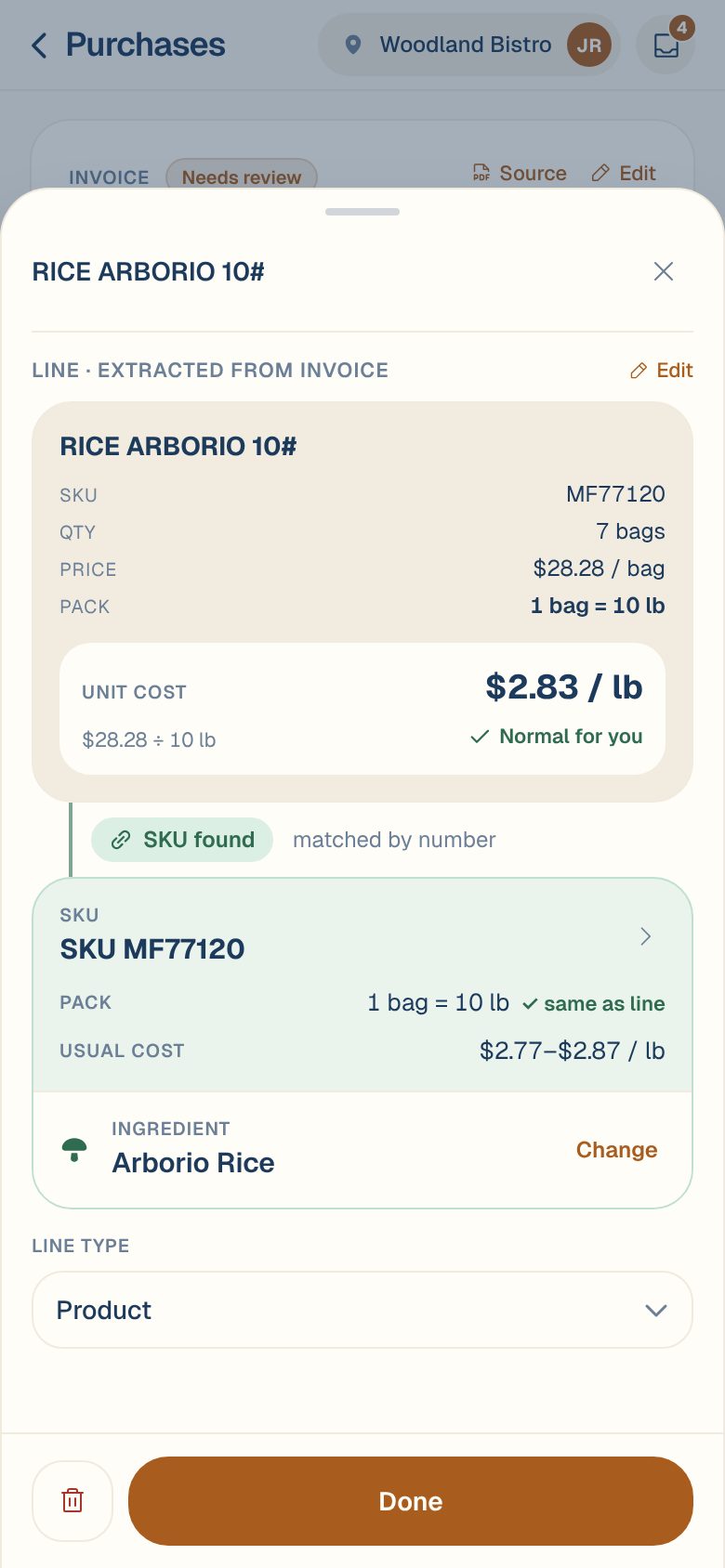
Every product line on an invoice belongs to a SKU, the vendor’s own product, and each SKU feeds one ingredient, the thing you cook with. That link is how a case of “CHKN BRST BNLS 4/10#” becomes the price of a pound of chicken breast in your recipes. When the link is wrong, the price lands on the wrong ingredient. For the background, see Invoice lines, products and ingredients.
Change the ingredient on a line
- On the invoice, tap the line.
- In the SKU card, find Ingredient and tap Change.
- In Match ingredient, search for the one you want and tap it.
- Tap Save at the bottom.
The change follows the product everywhere. Changing the ingredient on one line moves the whole SKU. Every line of that product, on this invoice and on earlier ones, including verified ones, moves to the new ingredient with it, and future invoices follow. That’s usually what you want: a product that was matched wrong was wrong every time.
Link a line that isn’t linked yet
A line with no ingredient shows a green pill with a name in quotes. That’s the new ingredient Maitaki will create when you verify. If that’s what you want, you don’t need to do anything.
To choose yourself, tap the line and look at Ingredient in the SKU card:
- Looks like an ingredient you have: Maitaki found a match from a similar product. Tap Use that ingredient to accept it, or Other to search.
- Looks like a name (new): nothing matched. Tap Create to make it now, or Pick existing to search your ingredients.
After Use or picking from the search, tap Save.
Create a new ingredient from a line
- Tap Create. The New ingredient sheet opens with a name taken from the line.
- Check the Name. If an ingredient with that name already exists, you’ll see it, with Link instead.
- Pick a Category (optional), such as Produce or Dairy.
- Choose the Pricing unit: how this ingredient is priced, like lb, gal or each. See Choose an ingredient’s pricing unit.
- Tap Create + link. The ingredient is created and the line is linked to it straight away.
When Maitaki asks about units
If the ingredient you pick is measured in a different kind of unit from the line, for example the line is in pounds and the ingredient is counted by each, Maitaki stops and shows Unit mismatch. That usually means you’ve picked the wrong ingredient. Tap Cancel and pick again, or Link anyway if you’re sure.
“Possible SKU” and “Check match”
- Possible SKU: the line has no item number, but reads like a product you already buy from this vendor. Check the pack and last price shown, then tap Use this SKU if it’s the same product, or Not it if it isn’t.
- Check match: Maitaki linked the line but wasn’t certain. Open it and make sure the ingredient is right. It doesn’t stop you verifying.
Common questions
I want to fix a product on its own, not from an invoice.
You can move a product to another ingredient from its SKU page in the Library. See Move a product to another ingredient.
I have two ingredients that are really the same thing.
Merge them, so their history comes together. See Merge duplicate ingredients.
Can I unlink a line without picking another ingredient?
No. Pick the right ingredient instead. Lines always follow their SKU, so the fix is to give the SKU the right ingredient.