Switch between locations
Every screen shows one location at a time. Here's how to change it.
Also known as: change store · other restaurant · multi-location · branch · wrong location · change site · second store · select restaurant · pick store · outlet
If your restaurant has more than one location, Maitaki shows one at a time. The Dashboard, invoices, sales, labor, recipes, menus, Chat and Activity all follow the location you’ve picked.
See which location you’re in
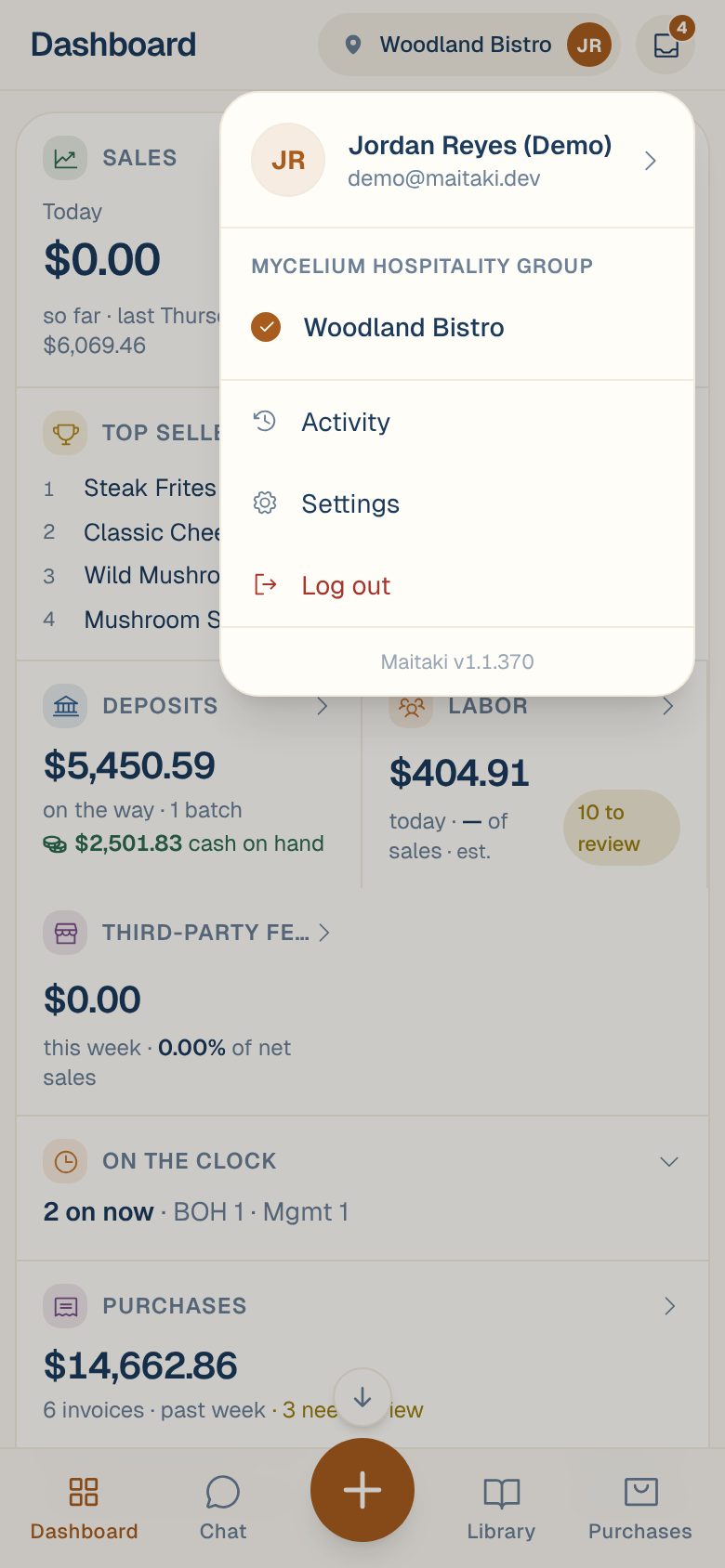
- On a phone: it’s in the pill at the top right, next to your avatar. Long names are shortened.
- On a computer: it’s under your name, at the bottom of the sidebar.
Switch to another location
- Open the account menu: tap the location pill at the top right on a phone, or your name at the bottom left on a computer.
- Under your organization’s name, tap the location you want. The one you’re in has a filled dot.
The menu closes and every screen now shows that location. Maitaki remembers your choice on this device, so it opens there next time.
Check the pill before you upload. An invoice you scan or a cash amount you log goes to the location you’re in at the time.
Common questions
A location is missing from my list.
You only see the locations you’ve been given. Ask an Owner or Admin to add it to your access. See Change someone’s role or locations.
It says "No locations yet."
Your account doesn’t have access to any location. Ask an Owner or Admin to give you one. If you’re an Owner or Admin, add a location.
I switched on my phone. Why is my computer still on the other location?
Your choice is remembered on each device separately. Switch on the computer too.
Some buttons disappeared when I switched.
Your role can be different at each location. For example, you might be a Manager at one and a Member at another. See Roles: who can do what.