Change your digest color
Pick the color at the top of a location's digest images, so your team knows at a glance which restaurant it's from.
Also known as: colour · digest colour · header color · branding · brand colour · theme · recap color · change colours · logo color · banner
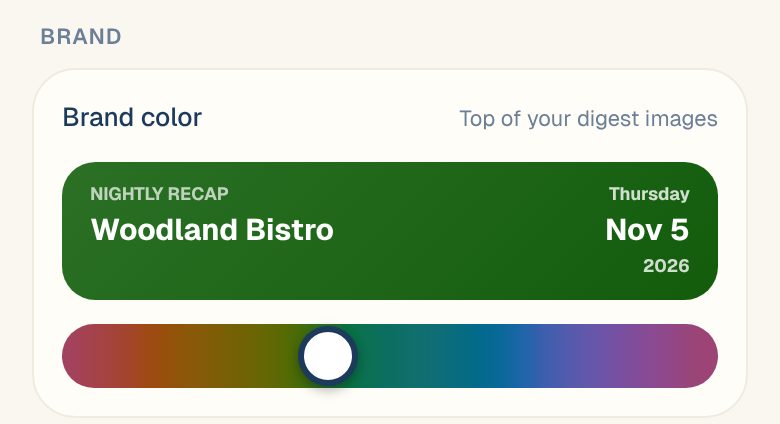
The images in a location’s digests have a colored band across the top, with the location’s name and the date. You choose that color for each location. If you have more than one restaurant, a different color for each makes their digests easy to tell apart.
Pick a color
- Open the account menu (your location and avatar, top right on a phone; bottom left on a computer) and tap Settings.
- Tap your location, then Name & business day.
- Under Brand, drag the Brand color slider. The preview above it shows how the top of your digest images will look.
- Tap Save changes.
Every color on the slider keeps white text easy to read, so there’s no wrong choice.
Common questions
The slider is greyed out.
Only Managers, Admins and the Owner can change a location’s settings.
My digest doesn't have images.
Digest images go to Telegram groups that are allowed to see financials. A group set to Operational only gets a text message instead. See Add Maitaki to your team’s Telegram group.
How do I set up a digest?
See Schedule a digest.