Find your way around the Inbox
The summary, Review, All and Skipped, and filtering by type or source.
Also known as: queue · to do list · documents · timeline · review list · tray · notifications · uploads · incoming · mailroom
Everything that reaches Maitaki lands in the Inbox first: photos you snap, PDFs you upload, documents emailed to your invoice address and files you send in Chat. It shows what Maitaki did with each one, and what’s still waiting for you.
Open the Inbox
- On a phone: tap the round tray icon at the top right, next to your location and avatar. Its badge counts what needs you.
- On a computer: click Inbox in the sidebar.
- From the Dashboard: tap the Inbox card. It shows how many are waiting to review, and how many are still being read.
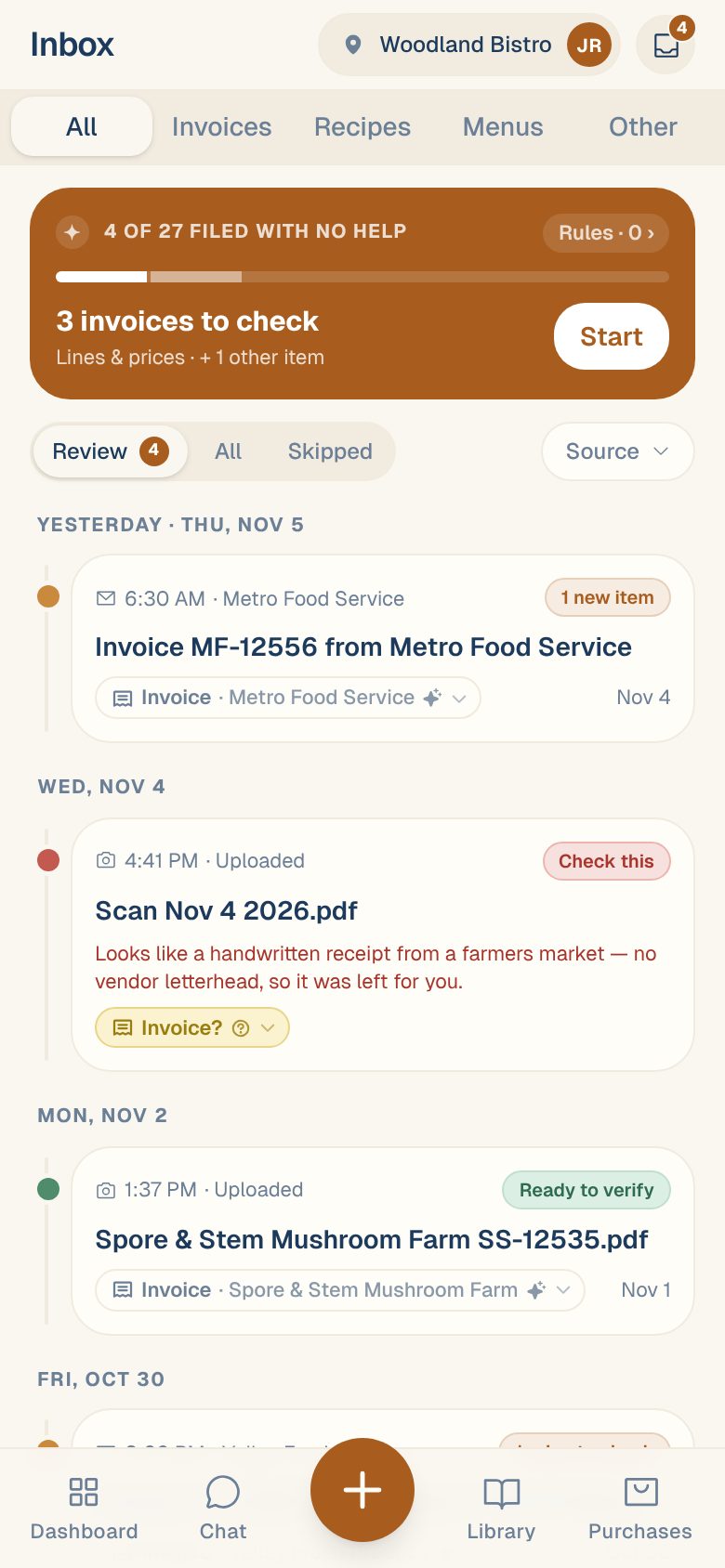
The summary at the top
The colored card at the top sums up the last 30 days.
- 4 OF 27 FILED WITH NO HELP (for example) counts what Maitaki handled without anyone: invoices it verified itself, statements and order confirmations it filed, things it skipped, and copies it set aside.
- Rules · 0 › opens your sorting rules.
- 3 invoices to check says how many invoices are waiting, with + 1 other item for anything else that needs you. Tap Start to go through the invoices one after another.
- When there’s nothing left, it says Nothing needs you.
Filter what you see
Type, across the top:
| Tab | Shows |
|---|---|
| All | Everything |
| Invoices | Invoices only |
| Recipes | Recipes sent in |
| Menus | Menus sent in |
| Other | Statements, order confirmations, and anything that isn’t one of the above |
Status, under the summary:
- Review shows only what still needs someone. This is where the Inbox opens. The number on it is how many.
- All shows everything, grouped by the day it arrived.
- Skipped shows what was set aside: skipped documents, order confirmations and copies of invoices you already have. Nothing here is ever thrown away.
Source, on the right: All sources, Uploaded (photos and PDFs from the app), Emailed or Chat Uploaded.
Read a card
Each card shows, from the top:
- Where it came from (a camera, envelope or chat icon), the time it arrived, and who emailed it.
- Its status on the right, like Ready to verify or Statement. See What each Inbox status means.
- The email subject or file name.
- A chip saying what it was sorted as, like Invoice · Metro Food Service, and the date printed on the invoice. Tap the chip to confirm or change it. See Tell Maitaki what a document is.
Tap anywhere else on the card to open it. Tap ‹ Inbox at the top to come back to the same place in the list.
Can’t find something? The Inbox opens on Review, which hides anything that’s done. Tap All, and set the type and source back to All.
Common questions
What are the SALES CHECKS cards?
Managers sometimes see cards under SALES CHECKS. They’re about your delivery-app sales, not documents. See DoorDash and other apps in your sales.
Where do order confirmations go?
They’re kept under the Other type and under Skipped, and never counted as spend. See Why order confirmations don’t count.
Is the Inbox the same for everyone on my team?
Yes. Everyone at a location sees the same Inbox for that location. To see another location’s, switch locations.