What happens after you upload
Reading, ready, to review: what each step means and how long it takes.
Also known as: processing · reading · how long · pending · nothing happened · where did it go · upload status · waiting · in progress · loading · spinning · queue
Once you tap Upload & scan, Maitaki sends your files, reads each invoice line by line, and checks what it read. You can follow every step in the Inbox, and you don’t have to wait on any of them.
To open the Inbox, tap the round tray icon at the top right, next to your location and avatar. Its badge counts what needs you. On a computer, click Inbox in the sidebar. The Inbox card on your Dashboard shows the same count, plus how many are still reading.
The steps
- Uploading… or Waiting… Your phone is sending the files, a couple at a time. These show at the top of the Inbox. Keep the app open until they’re gone.
- Reading… Maitaki has the file and is reading it. You can close the app now; reading carries on. Tap the card to see its progress.
- The result. The card changes to say what came out of it, and anything left for you to do.
A PDF holding many invoices shows as one card, with Scanning pages and then Reading invoices and a count as it works through the file.
What each result means
| You’ll see | What it means |
|---|---|
| Ready to verify | Every check passed. Open it and tap ✓ Mark verified. |
| 1 price to check, Total doesn’t match and similar | The first thing that needs a look before it can be verified. See What “Needs review” means. |
| 3 new items | Every check passed, and some lines will become new ingredients when you verify. |
| To review | Waiting for someone to check it. |
| Verified or Auto-verified | Done. It counts in your costs and spend. |
| Already on file | A copy of an invoice you already have. It was set aside and won’t count. |
| Might be a copy | It looks like one you already have. Compare and choose. See Duplicate invoices. |
| What is it? | Maitaki isn’t sure what kind of document this is. Tap it and choose. |
| Skipped · order | An order confirmation. Kept, never counted. See Why order confirmations don’t count. |
| Statement | A statement or reminder. Kept, never counted. |
| Couldn’t read or Stuck | Something went wrong. See Fix an upload that failed or got stuck. |
For every pill in the Inbox, see What each Inbox status means.
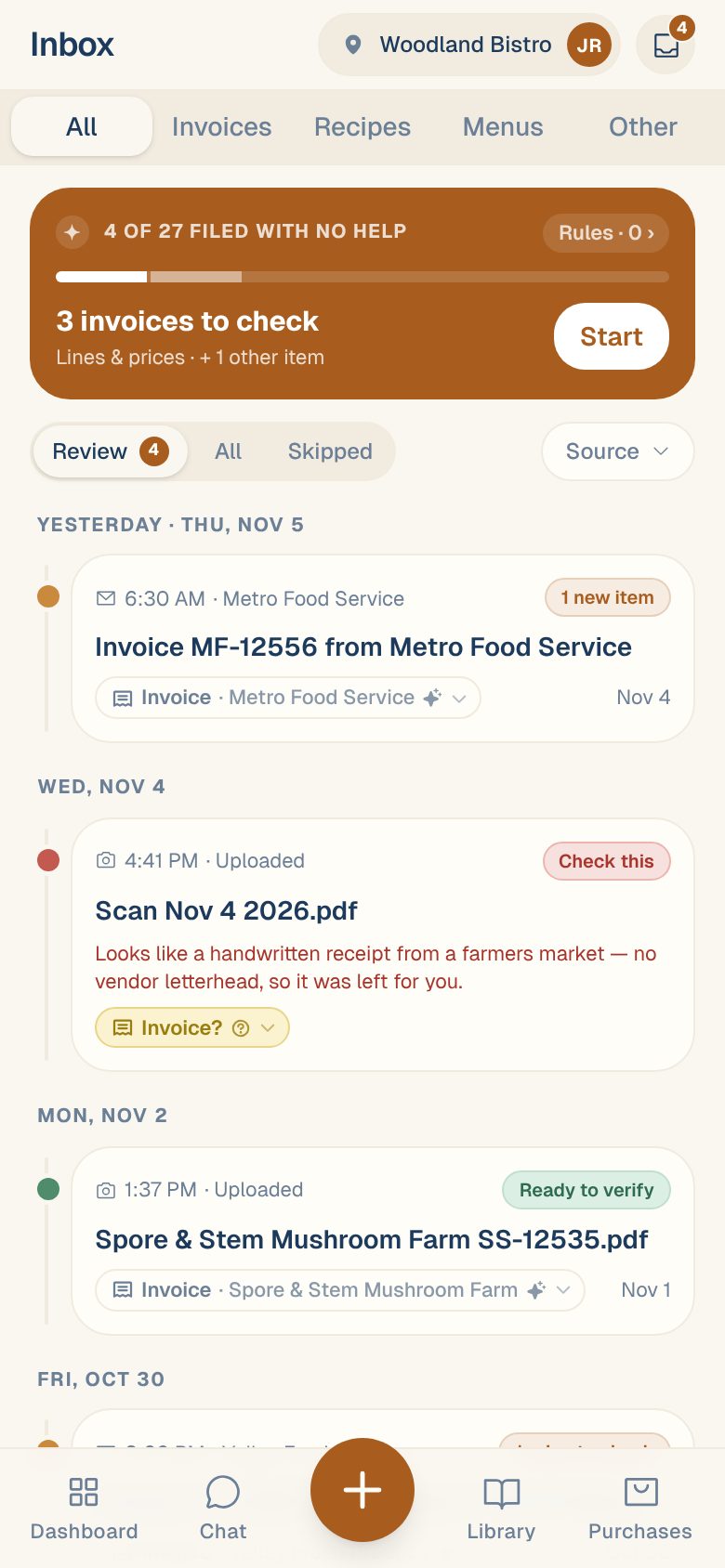
Review what’s waiting
At the top of the Inbox, a summary says how many invoices are waiting, like 4 invoices to check. Tap Start to go through them one after another. Each opens with Reviewing 1 of 4 across the top, and Skip → moves on to the next one.
Verified invoices update your ingredient prices, recipe costs and spend straight away. See Review and verify an invoice.
Want Maitaki to verify the clean ones for you? A Manager can turn on auto-verify. See Let Maitaki verify invoices for you.
How long it takes
Reading time depends on the file: a PDF of many invoices takes longer than a single photo. Right after reading, an invoice can show Checking prices — ready in a minute or two while each price is compared with what you usually pay.
If a card shows no progress for 3 minutes, it changes to Stuck. Open it and tap Try again, or Resume reading this file for a big PDF.
Common questions
I uploaded something and can't find it.
The Inbox opens on Review, which hides anything that’s done. Tap All to see everything, grouped by the day it arrived. Things that were set aside, like copies and order confirmations, are under Skipped.
I closed the app while it said "Uploading…".
Anything still uploading or waiting when the app closed didn’t finish. Open the Inbox. If the file isn’t there, upload it again.
Does an invoice count before it's verified?
Yes. An invoice counts in your Purchases total from the moment it’s read, and the report shows how much is verified and how much is still pending. Copies held as Might be a copy, order confirmations and statements never count.