Read the Labor report
Labor cost and labor % of sales for any dates, broken down by day, department, role and person.
Also known as: labour report · staff cost breakdown · wages by employee · payroll summary · labour percentage · wage bill · cost of staff · labor vs sales
The Report tab shows what your staff cost for the dates you pick, and how that compares with what you sold. It’s the quickest way to see if a week ran heavy and where the hours went.
Pick your dates
- From the Dashboard, tap the Labor title, then the Report tab.
- Tap the dates at the top to open the picker.
- Tap a shortcut, like This week, Last month or Payroll period, or pick a start and end day in the calendar and tap Apply.
Use ‹ and › beside the dates to step back and forward by the same length: a day, a week, a pay period or a month. Payroll period shows once your payroll period is set.
Labor cost and labor %
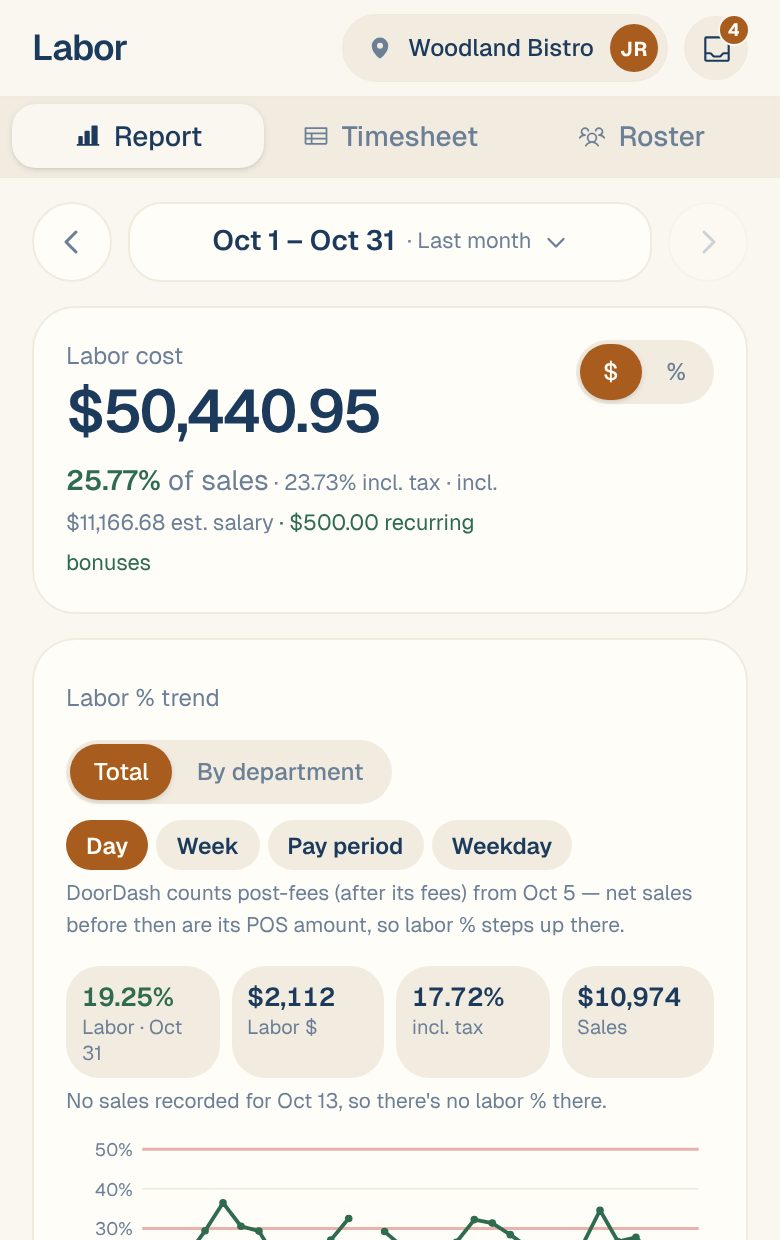
The top card shows Labor cost for the dates, and under it the labor % of sales: labor cost divided by net sales, before tax and tips. The color tells you how it’s going:
| Color | Labor % |
|---|---|
| Green | Under 30% |
| Amber | 30% to under 50% |
| Red | 50% or more |
The smaller figures next to it:
| You’ll see | What it means |
|---|---|
| incl. tax | Labor as a % of net sales plus tax, for comparing with reports that include tax |
| incl. $… est. salary | Salaried pay spread into these days. It’s an estimate until the pay period ends. See How salaries and day rates are costed. |
| recurring bonuses | Bonuses added every pay period. See Add a recurring bonus. |
| OT at 1X Rate | Overtime is costed at the regular rate at this location. See Turn the overtime premium on or off. |
The $ and % switch changes the bars further down between dollars and labor %.
The rest of the Report
Scroll down for:
- Labor % trend: labor % over time, with sales underneath. It shows when you pick more than one day. See Track your labor % over time.
- Hours, with overtime hours in red, and To review, the number of timesheet flags in these dates. Tap To review to see the flagged shifts.
- By day: labor for each day. Longer ranges switch to By week, then By month. For a single day you see By hour instead, with sales as bars and labor as a line.
- Lunch / Dinner: the split before and after your cutoff time. See Compare lunch and dinner labor.
- By department, By role and By employee: who the money went to.
- Insights: a few plain-language observations about your labor, when Maitaki has some. Tap one to go to what it’s about.
- Timesheet flags: the first few open flags. Tap one, or See all, to open the flagged shifts.
Department, role and person
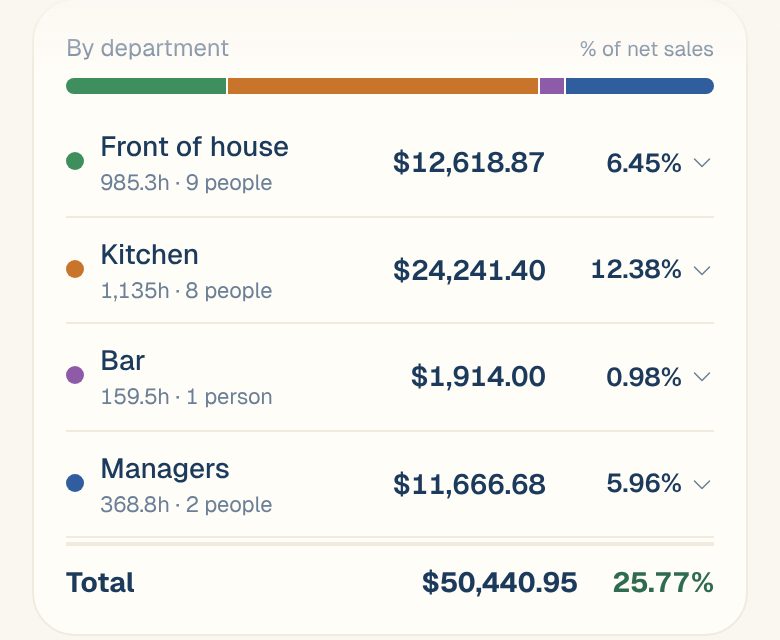
Each row shows hours, cost and that row’s share of net sales. The rows add up to the Total, which matches the labor cost at the top.
- By department appears once you’ve set up departments. Tap a department to see the people in it.
- By role can include Salaried (unallocated), salary for days someone didn’t clock in, and Recurring bonuses, so the roles still add up.
- By employee marks people whose pay is set in Maitaki with Salary, Day rate or Hourly, and est when the amount is an estimate. See Set or change someone’s pay.
Common questions
Why is labor % a dash?
There were no sales for those dates, so there’s nothing to divide by. This is common early in the day, before the first sale.
Why does today's figure keep changing?
People still on the clock are counted as an estimate of what they’ve worked so far, and the figure grows until they clock out. See See who’s on the clock.
Why doesn't my labor % match my POS or payroll report?
Maitaki divides by net sales, before tax and tips, and counts salaried pay and bonuses spread across your pay periods. A report that uses gross sales, or leaves salaries out, gives a different number. The incl. tax figure helps when the other report includes tax.
A shift looks wrong. Can I change it here?
No. The Report reads your timesheets as they are. Fix the shift in your time clock, and the Report updates when the change comes in. See Fix a missed clock-in or clock-out.