Review timesheet flags
Maitaki flags shifts that look wrong or cost more than usual. Here's what each flag means and where to fix it.
Also known as: warnings · timecard issues · missed punch · problems · alerts · red tags · overtime warning · check hours · punch errors · timecard errors
Maitaki checks every shift that comes in from your time clock. When one looks wrong, like a missing clock-out or a shift far longer than usual, it’s flagged so you can check it before payroll.
Find your flags
You’ll see the count in a few places:
- N to review on the Dashboard’s Labor card, for the last 60 days.
- To review on the Labor Report, for the dates you’ve picked. Tap it to open the flagged shifts.
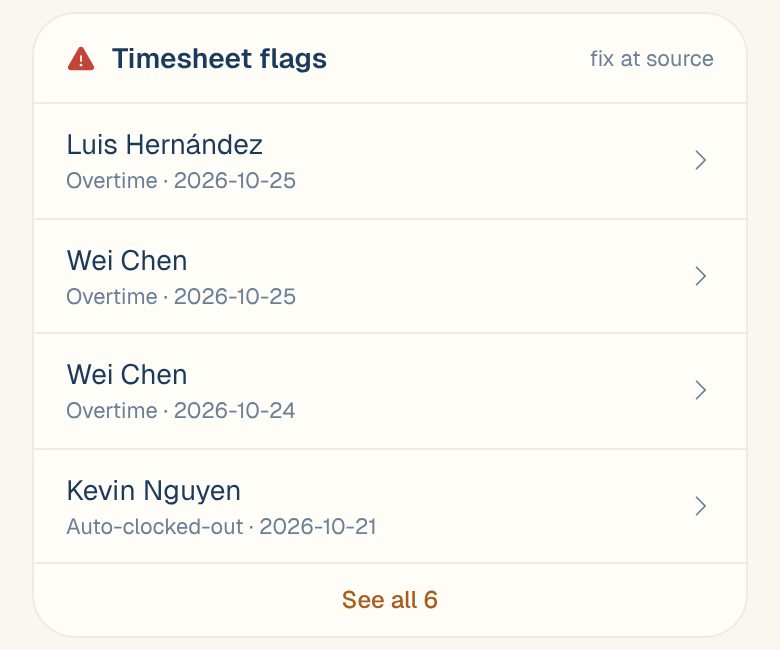
- Timesheet flags near the bottom of the Report, with the first few. Tap one, or See all, to open the list.
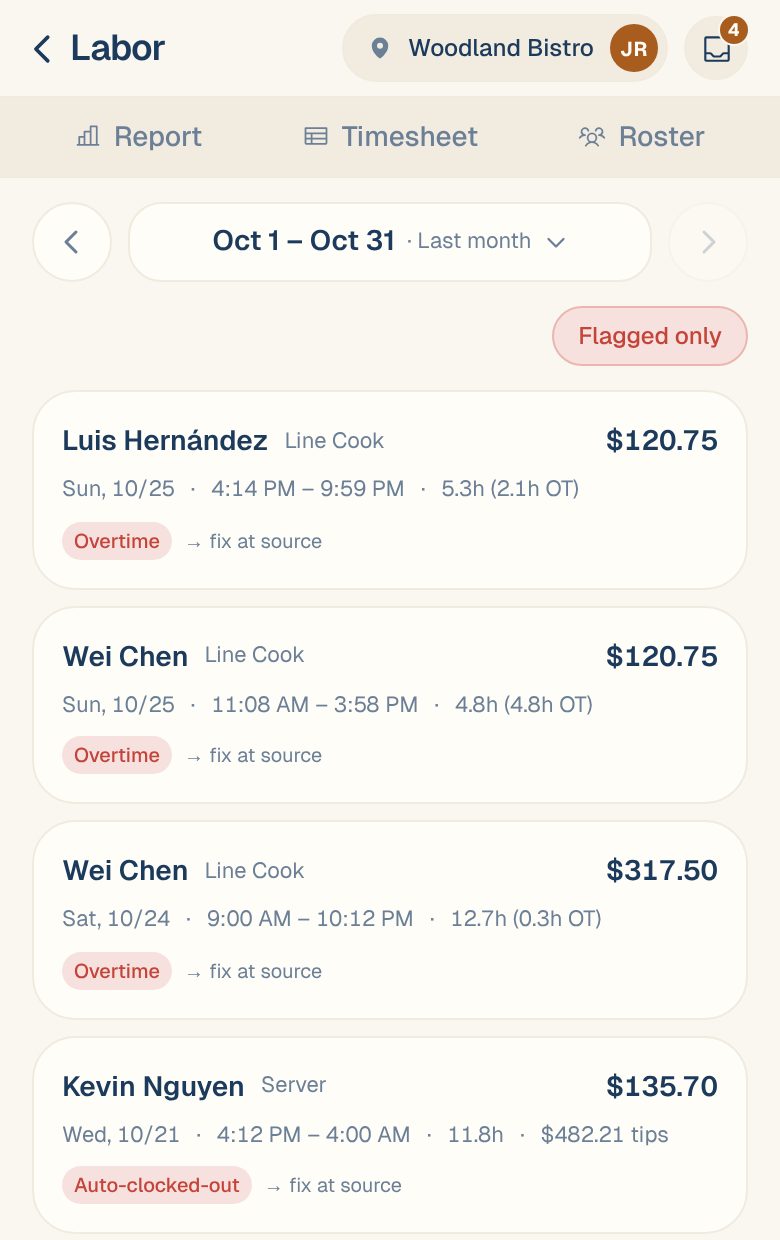
The list shows each flagged shift with the person, role, cost, date, times and hours, and the flag underneath. Tap Flagged only to switch between flagged shifts and every shift in the dates. Use the dates at the top to look further back, up to a month at a time.
On the Timesheet, a flagged shift has a small amber dot next to the name.
What each flag means
| Flag | What it means | What to do |
|---|---|---|
| Missing clock-out | The shift has a start but no end. | Add the clock-out time in your time clock. See Fix a missed clock-in or clock-out. |
| Missing clock-in | The shift has an end but no start. | Add the clock-in time in your time clock. |
| Auto-clocked-out | Your time clock ended the shift itself, and it doesn’t look like a normal close-out. Often someone forgot to clock out. | Check when they really left, and correct the clock-out. |
| Unusually long shift | The shift is at or over your long-shift limit, 14 hours unless you’ve changed it. Usually a missed clock-out. | Check the times. Set the limit in labor rules. |
| Overtime | The shift includes overtime hours. | Nothing, if the hours are right. It’s there so overtime doesn’t surprise you at payroll. |
| Overlapping shifts | The same person has two shifts that overlap. | Delete or correct the duplicate in your time clock. |
| Missing break | The shift was long enough to need a break, and the break was too short. Only checked if you’ve turned break rules on. | Check the break in your time clock. Set the rule in labor rules. |
| Wage mismatch | The shift’s pay rate is different from the rate set for that job in your time clock. | Check the rate in your time clock, or set the person’s pay in Maitaki. |
Where to fix a flag
Maitaki reads your timesheets but never changes them, so a flag is fixed where the shift was recorded. The hint beside each flag tells you where:
| You’ll see | Fix it |
|---|---|
| fix in Toast | Correct the shift in Toast. The change syncs back to Maitaki. |
| fix & re-import | Correct your timesheet file and import it again. |
| fix at source | Correct it in the system your timesheets come from. |
When the corrected shift comes back in, Maitaki checks it again and the flag clears. The shift then shows an Edited chip on the Timesheet. See See every change to a shift.
Common questions
Can I dismiss a flag I know is fine?
No, not in Maitaki. A flag clears when the shift is corrected at its source. An Overtime flag on real overtime can stay; it’s there for your information.
Why does the Dashboard count more flags than the Report?
The Dashboard counts the last 60 days. The Report counts only the dates you’ve picked.
Do flags change my labor cost?
No. A flag is a warning. The cost comes from the shift as your time clock recorded it, so correcting the shift is what changes the cost.