Sorting rules for emailed documents
Write a rule the way you'd say it, test it, and turn it on.
Also known as: auto sort · filter emails · email filter · always skip · sender rule · subject line · automation · hard rule · learned rule · triage
Every document emailed to your invoice address is sorted as it arrives: read as an invoice, kept as a statement, or skipped. Sorting rules make that exact for the senders you know. A rule is checked first, before Maitaki uses its own judgement, and gives the same answer every time.
Everyone at the location can see the rules. Managers, Admins and Owners can change them.
Open your sorting rules
- In the Inbox, tap Rules (for example Rules · 2 ›) on the summary card at the top.
- Or open the account menu (your location and avatar, top right on a phone; bottom left on a computer), tap Settings, tap your location, then Sorting rules under Connections.
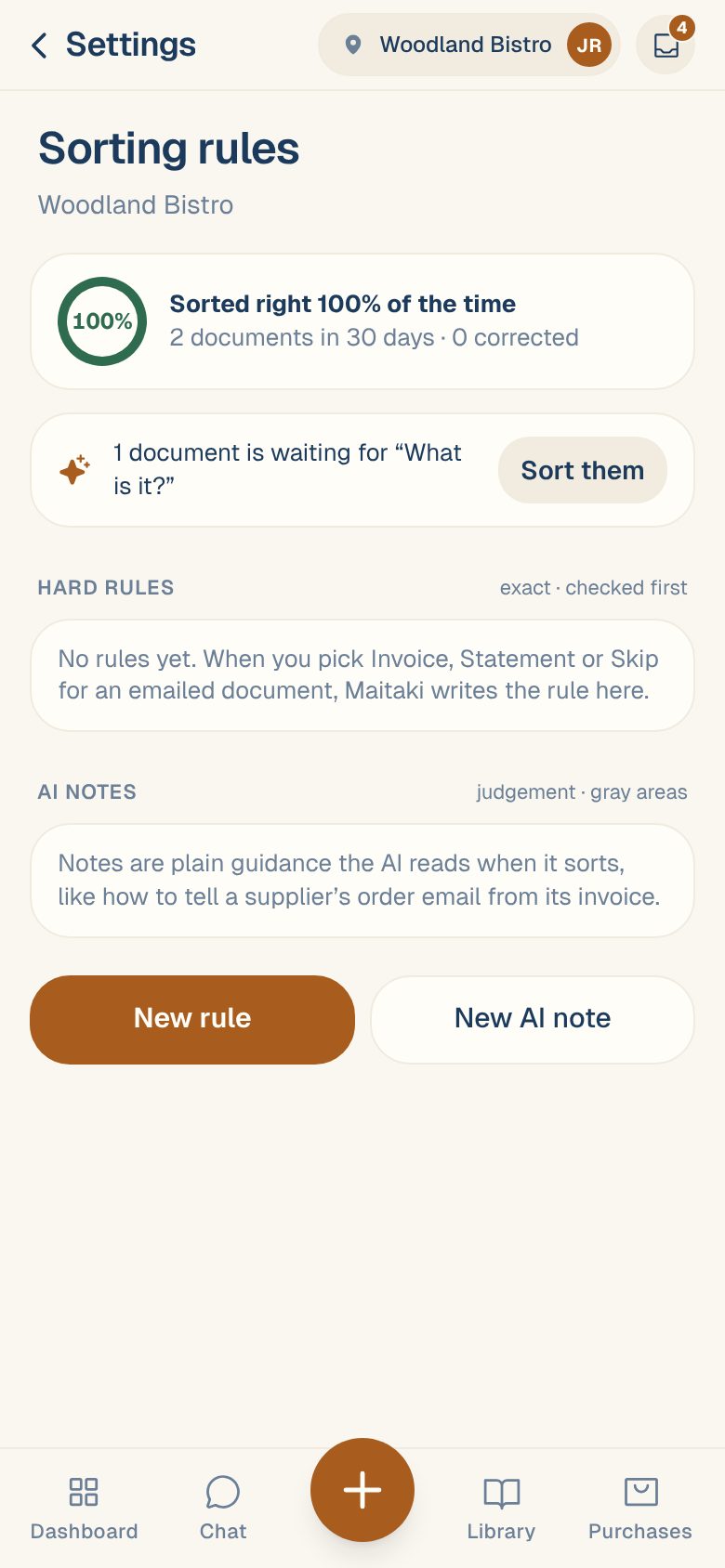
At the top, Sorted right 100% of the time (for example) shows how often sorting was right over the last 30 days, and how many you corrected.
Rules write themselves
You don’t have to start from scratch. When a Manager picks Invoice, Statement or Skip for an emailed document, Maitaki writes the rule that would have got it right, like Skip emails from orders@supplier.com that start with “New Order”. You’ll see Maitaki learned a new rule, with Undo and Edit rule.
These show under Hard rules with learned from your pick.
Write a rule
-
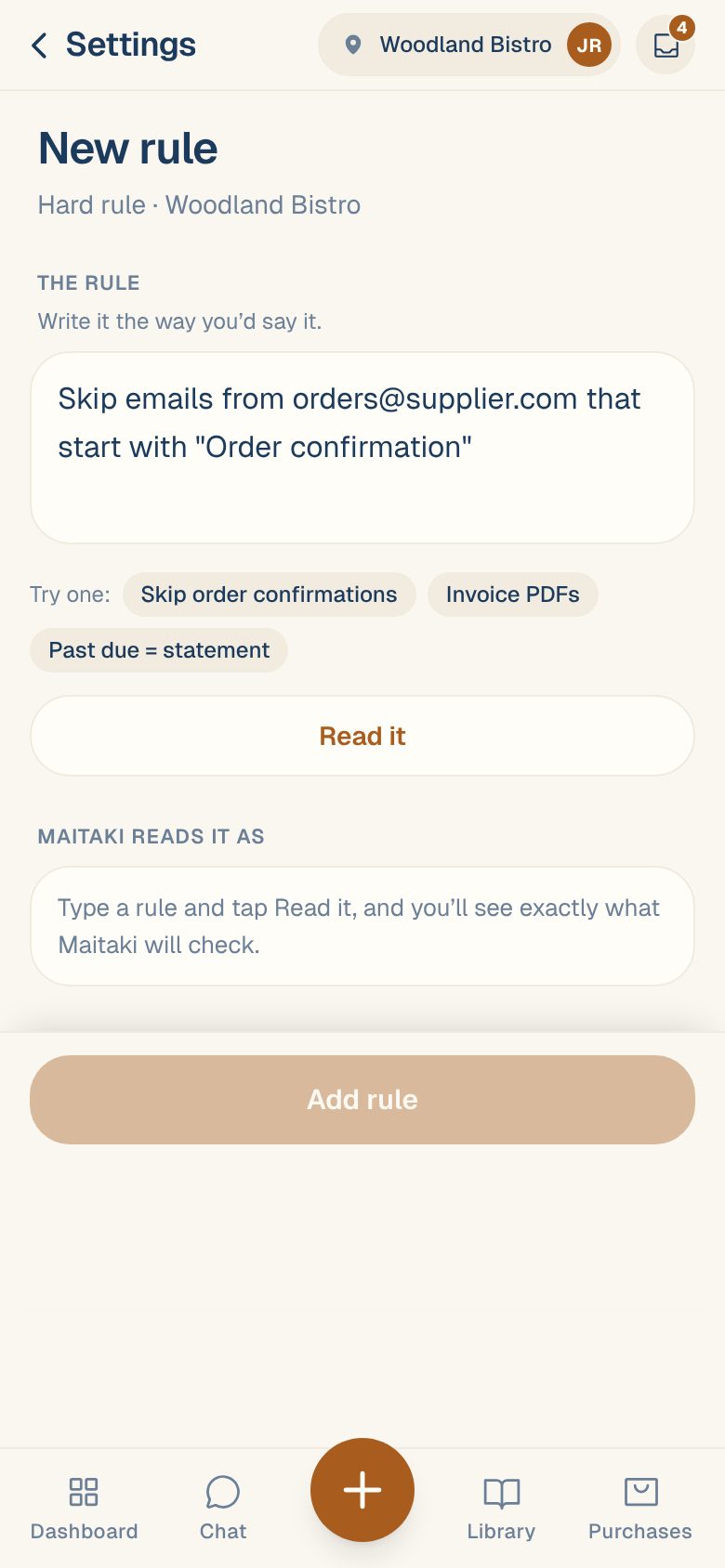
Tap New rule.
-
Under The rule, write it the way you’d say it, for example Emails with “Past due” in the subject are statements. Or tap an example under Try one:.
-
Tap Read it.
-
Check Maitaki reads it as. It shows exactly what will be checked: From, Subject starts, Subject has and File name has, then what to do: Invoice, Statement or Skip. Change any field if it’s not quite right.
-
Read Test · last 90 days. It says how many emailed documents the rule matches, and how many would be sorted differently.
-
Give it a Name if you like, then tap Add rule.
The rule sorts new documents from now on. Documents that arrived before stay as they are.
Keep rules narrow. “Skip emails from orders@supplier.com that start with Order confirmation” is safer than “Skip everything from supplier.com”, which could catch their invoices too.
Change, turn off or delete a rule
Tap a rule under Hard rules to open it.
- Change it, then tap Save rule.
- Turn off stops it sorting anything, without losing it. Turn on brings it back.
- Delete removes it. Documents it already sorted stay as they are.
A rule people keep correcting shows Corrected 3× — check it. Open it and tighten it.
Sort what’s waiting
If documents are waiting at What is it?, you’ll see 1 document is waiting for “What is it?” with Sort them. Tap it to see Here’s how they’d be sorted. Nothing is filed until you tap File.
Common questions
Do rules apply to photos I upload?
No. Rules only sort documents emailed to your invoice address. See Get an email address for invoices.
What if a Skip rule catches a real invoice?
A Skip rule never quietly hides something that reads clearly as an invoice. It shows in the Inbox as Check this instead, so you can choose.
What about cases a rule can't cover?
Use an AI note, plain guidance Maitaki weighs when it sorts. See Guide sorting with AI notes.
I'm a Member. Can I still sort documents?
Yes. You can sort any document one at a time. Your picks don’t write rules. See Tell Maitaki what a document is.