Schedule a digest
Morning outlook, nightly recap, or your own prompt.
Also known as: daily report · nightly recap · morning outlook · summary · scheduled report · debrief · end of day report · eod · weekly summary · recap message · notifications · notification · daily summary · alerts
A digest is a short report Maitaki posts to your team’s Telegram group on a schedule, like last night’s sales every morning or a recap at close. Each location can have up to 4.
Digests go to Telegram only, so link a group to the location first. See Add Maitaki to your team’s Telegram group.
Set up a digest
- Open the account menu (your location and avatar, top right on a phone; bottom left on a computer) and tap Settings.
- Tap the location, then Digests under Updates & team chat.
- Tap New digest, or Edit on one that’s already there.
- Give it a Name.
- Pick a Cadence: Daily, Weekly, Bi-weekly or Monthly. For weekly and bi-weekly, tap the Days it goes out. For monthly, enter the day of the month, or -1 for the last day.
- Set the Time (location time).
- Under Content, choose Template and pick one, or Custom prompt and write your own (see below).
- Tick Telegram. If the location has more than one linked group or topic, pick one under Send to.
- Set Status to On. New digests start Off.
- Tap Save.
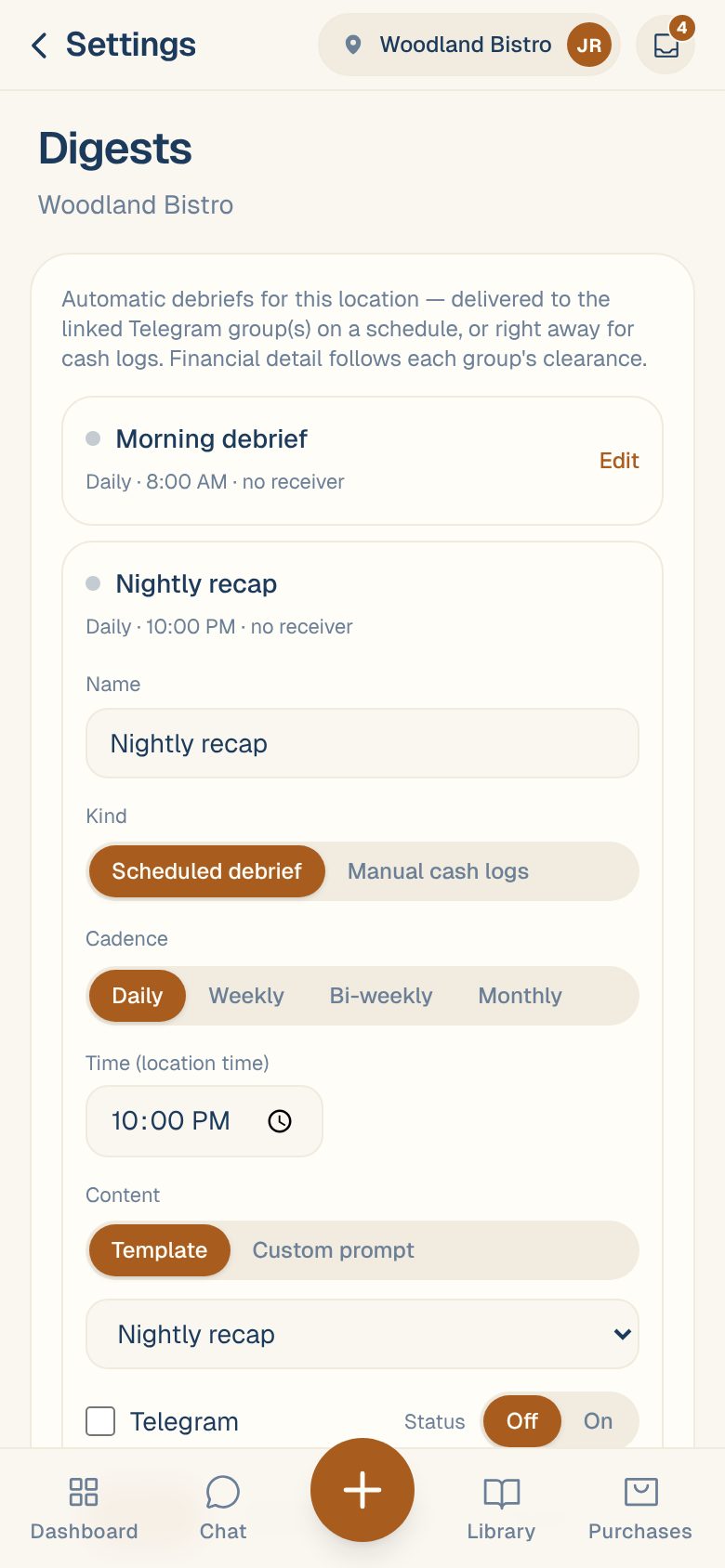
On the list, a green dot means the digest is on. Each row shows when it goes out, such as Daily · 8:00 AM · Telegram. A row ending no receiver isn’t going anywhere: tick Telegram on it.
Choose what’s in it
| Template | What it covers |
|---|---|
| Morning outlook | Yesterday’s net sales against the same day last week, cash and deposits, and invoices waiting for review. |
| Nightly recap | Today’s net sales, food cost %, purchasing spend, labor cost and labor %, timesheet issues, and invoices waiting for review. |
| COGS summary | Food cost and purchasing spend for the last 7 days. |
| Vendor price moves | Price increases from your vendors over the last 2 weeks, one line per vendor. |
With Custom prompt, write what you want in a sentence, the way you’d ask Chat. For example: “Top 5 vendors by spend last week, flag any price jump over 5%.”
Each group gets what it’s allowed to see. A group set to Operational only gets a version without sales, food cost, spend or labor figures. Set a managers’ group to Managers — financials for the full digest.
Try it now
After you save, open the digest again with Edit and tap Send a test now. It posts the digest to the group straight away and shows ✓ Sent to 1 chat. If no group is linked, it tells you so.
Turn off or delete a digest
- To pause it, tap Edit, set Status to Off, and tap Save.
- To delete it, tap Edit, then the trash icon.
When a location has 4 digests, New digest is replaced by Up to 4 digests per location. Delete one to add another.
To post each cash log as it’s saved, use a Manual cash logs digest. See Post cash logs to Telegram.
Common questions
It says "Pick a receiver (Telegram) or it won't be delivered."
The digest is on, but Telegram isn’t ticked. Tick it, choose where it goes, and save.
It says "No Telegram group linked yet".
Link a group to this location first, then come back and pick it. See Add Maitaki to your team’s Telegram group.
My digest was late, or says Incomplete Sync.
When sales or labor haven’t finished syncing, the digest waits a little, then goes out marked Incomplete Sync with what’s missing. See My digest was late or says Incomplete Sync.
Can I change the color of the digest images?
Yes. See Change your digest colour.