Roles: who can do what
Owner, Admin, Manager, Member and Viewer, and how a location role overrides.
Also known as: permissions · access levels · read only · who can see · rights · privileges · user types · access rights · security · restrict
Everyone in your Maitaki has one of five roles. Each role can do everything the one below it can, plus a bit more. Pick the lowest role that lets someone do their job.
The five roles
| Role | What it’s for, as the app puts it |
|---|---|
| Viewer | Can look at everything, change nothing. |
| Member | Adds and edits data, verifies invoices, approves AI suggestions. |
| Manager | Also deletes and archives, manages labor, and manages the team at their locations. |
| Admin | Everything at every location, plus members, invites and connections. |
| Owner | Everything, including organization settings. |
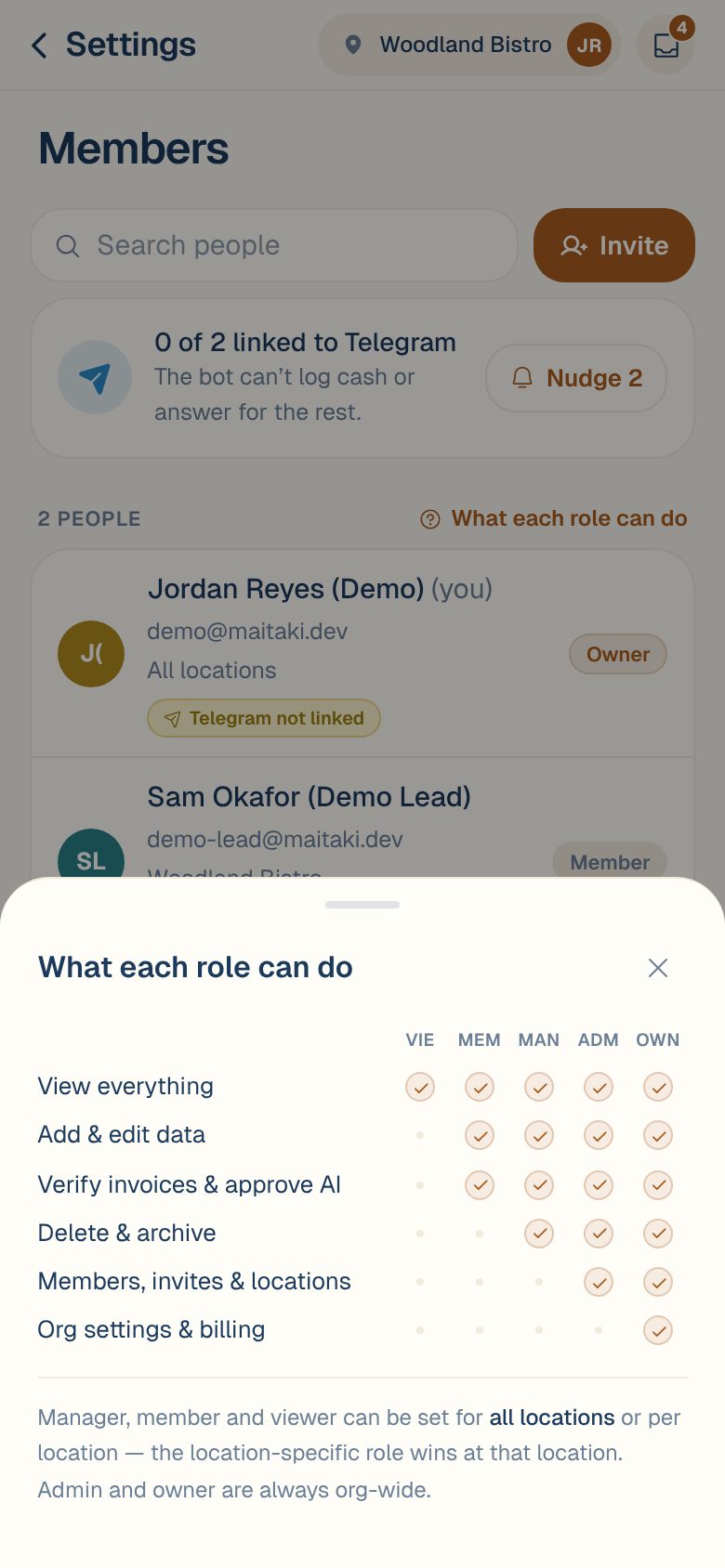
What each role can do
| Viewer | Member | Manager | Admin | Owner | |
|---|---|---|---|---|---|
| View everything | ✓ | ✓ | ✓ | ✓ | ✓ |
| Add & edit data | ✓ | ✓ | ✓ | ✓ | |
| Verify invoices & approve AI | ✓ | ✓ | ✓ | ✓ | |
| Delete & archive | ✓ | ✓ | ✓ | ||
| See labor cost and pay | ✓ | ✓ | ✓ | ||
| Change a location’s settings | ✓ | ✓ | ✓ | ||
| Invite staff to their location | ✓ | ✓ | ✓ | ||
| Members, invites & locations | ✓ | ✓ | |||
| Link Telegram groups | ✓ | ✓ | |||
| Rename the organization | ✓ |
A few things in plain words:
- Viewers don’t get the + button, so they can’t add invoices or anything else.
- Labor is visible to Managers and up. Members and Viewers don’t see labor cost or pay.
- A location’s settings pages (sales, labor, invoices, digests and so on) can be changed by its Managers and up. Everyone else can open them but not change them.
- Only Admins and Owners see Members in Settings, add or archive locations, and invite people to every location.
Every location, or only some
Admins and Owners always cover every location.
Managers, Members and Viewers can be given All locations, or only the locations you choose, with a role at each. A role set on one location overrides their role there. For example, someone can be a Member everywhere but a Manager at Main Street.
People only see the locations they’ve been given. See Switch between locations.
Check your own role
Open the account menu, tap Settings, then Organization. Your role is next to Your role.
Your role at one location may be different. If a button you expect is missing, ask an Owner or Admin what role you have there.
Who can change roles
- An Owner can give anyone any role, including Owner.
- An Admin can give Manager, Member or Viewer, and can’t change another Admin or an Owner.
- A Manager can set Viewer, Member or Manager for people at their own location only, from Settings → your location → Team at this location.
- Nobody can change their own access.
See Change someone’s role or locations and Invite someone to your team.
Common questions
Which role should I give a bookkeeper?
If they only need to look at invoices, spend and sales, Viewer. If they’ll verify invoices or fix lines, Member. Give Manager if they also need to see labor cost and pay.
Which role should I give a head chef or kitchen manager?
Member lets them scan invoices, verify them and edit recipes. Manager adds labor, deleting and archiving, and managing the team at their location.
Can there be more than one Owner?
Yes. An Owner can make someone else an Owner from Settings → Members.
Where can I see this in the app?
Admins and Owners can tap Settings → Members, then What each role can do.