Import a timesheet
Upload a timesheet CSV from your time-tracking system, check what it will change, and tell Maitaki who any new names are.
Also known as: upload · csv · timecard file · homebase · 7shifts · payroll file · spreadsheet · time clock export · upload hours · timesheet file
If your time-tracking system can export a CSV, you can upload it to Maitaki. Maitaki reads the columns, shows you what will change, and saves nothing until you confirm.
The file needs at least each person’s name and the date of each shift. Clock-in and clock-out times, hours, job title and pay rate make the costing more complete.
Upload a CSV
-
Open the account menu (your location and avatar, top right on a phone; bottom left on a computer) and tap Settings.
-
Tap your location, then Labor under Connections.
-
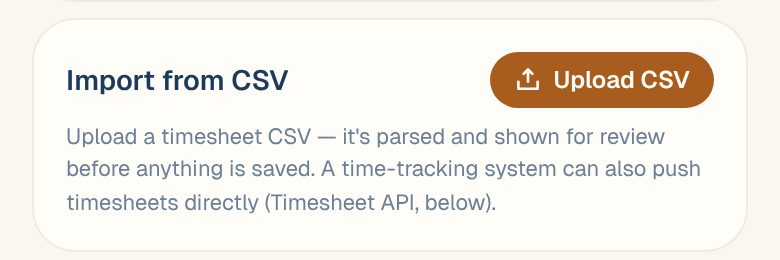
On the Import from CSV card, tap Upload CSV and choose your file.
-
Maitaki reads the file and opens Review import.
Check the review
The top of Review import shows the file name and the dates it covers, then three counts:
| Count | What it means |
|---|---|
| New | Shifts Maitaki doesn’t have yet. |
| Corrected | Shifts that are already in Maitaki but changed in this file. |
| Removed | Shifts imported earlier for these dates that aren’t in this file. They’ll be removed. |
Underneath you’ll see the number of rows, and either ✓ includes pay rate or no pay rate — cost pending. Tap View original file to check the file itself.
If some rows look odd, for example earnings that don’t match hours × rate, you’ll see how many rows to check. They still import, but it’s worth a look in your time-tracking system.
Upload whole days. Because shifts missing from the file are removed for the dates it covers, export every shift for each day in the file, not only some of them.
Match new names
If the file has names that aren’t on your roster, you’ll see a question like 2 names aren’t on your roster — who are they? For each name, choose:
- a person under Looks like, when Maitaki thinks it’s someone you already have, like a nickname or a missing last name,
- Add as a new person, for a new hire, or
- anyone under Someone else.
You can’t import until every name is decided.
Confirm
Tap Confirm import. You’ll see Timesheet imported, and the file appears under Imported files, where View file opens it again. To cancel instead, tap Discard.
Common questions
Which time-tracking systems work?
Any that can export a CSV with a name and a date for each shift. Maitaki works out which column is which. Once it has read a file layout, it remembers it for next time.
I uploaded the same file twice. Will shifts double up?
No. Shifts that match what Maitaki already has show as unchanged, so nothing is added twice.
Can my time-tracking system send timesheets without me uploading them?
Yes, if it can connect to an API. See Send timesheets with the Timesheet API.