Use the Timesheet
Every shift for the dates you pick, as a summary per person or in detail by person, day or department.
Also known as: timecards · hours worked · punches · clock in clock out · rota · time sheet · hours report · who worked when · punch report · time cards
The Timesheet tab lists every shift your time clock sent, with hours, breaks, pay rate and cost. Use it to check hours before payroll or to see who worked a given day.
The Timesheet is read-only. Times come from your time clock, and corrections happen there.
Open the Timesheet
- From the Dashboard, tap the Labor title, then the Timesheet tab.
- Pick your dates at the top. It starts on This week, and shows up to 92 days at a time.
The strip under the buttons adds up the dates: paid hours, overtime, cost, how many staff, and labor % of sales.
Summary: one row per person
Summary is where the Timesheet opens. Each person gets one row for the whole range, with their rate, number of shifts, hours and cost.
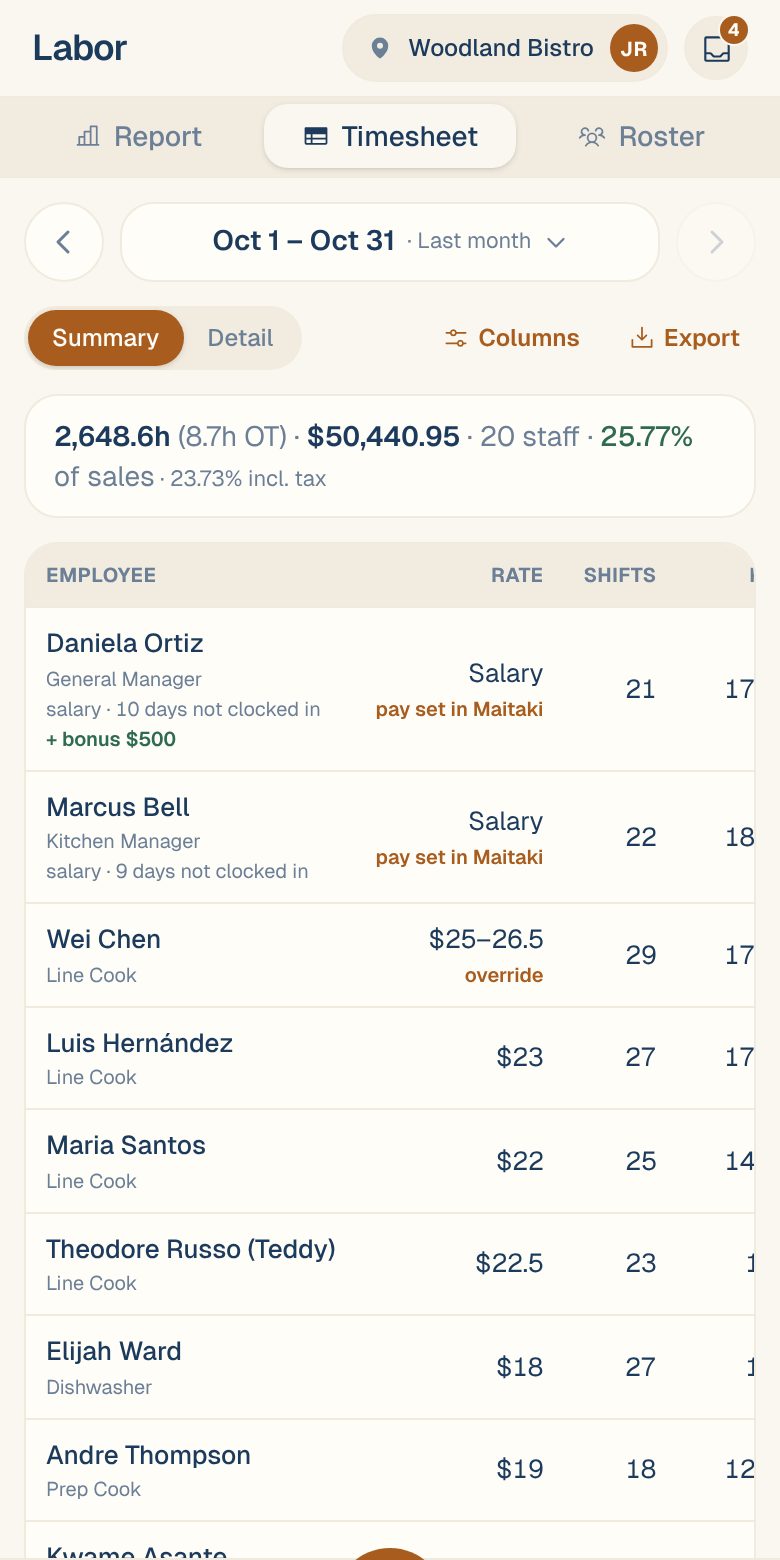
Under the rate you may see:
- pay set in Maitaki: the person is on a salary or day rate set in Maitaki.
- override: an hourly rate set in Maitaki replaces the one from your time clock.
See Set or change someone’s pay. Salaried people’s days without a clock-in fold into their row, like salary · 10 days not clocked in.
On a phone, the table scrolls sideways. The names stay put while you swipe.
Detail: every shift
Tap Detail to see each shift. For more than one day, choose how to group them:
| Button | Groups shifts |
|---|---|
| By person | Each person, with their shifts by date |
| By day | Each day, with everyone who worked |
| By dept | Each department. Shows once you’ve set up departments. |
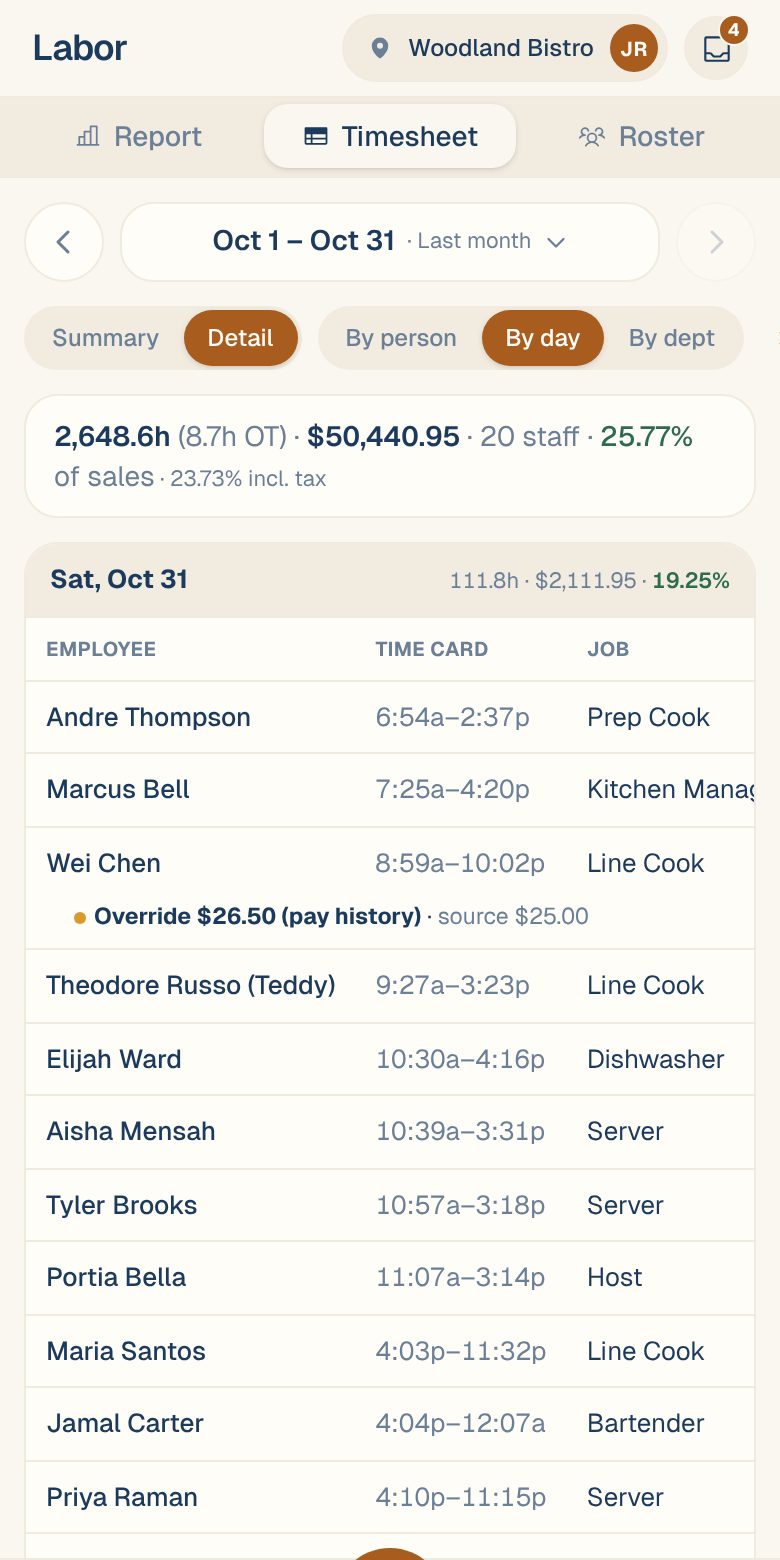
Each group has its own total line at the bottom. A few things you may see on a shift:
- An amber dot next to a name: the shift has a timesheet flag.
- Edited: the shift was changed in your time clock. Tap it for the shift’s history.
- Override $… (pay history): the shift is costed at a rate set in Maitaki, with your time clock’s rate beside it.
- no in, or — for hours and cost: the shift is missing a clock-in or clock-out and isn’t counted until it’s fixed. See Fix a missed clock-in or clock-out.
- + bonus or salaried · not clocked in: pay that isn’t a shift, so each day still adds up.
One day: Timeline or List
When you pick a single day, Detail offers Timeline, List and, with departments, By dept.
Timeline draws each person’s shifts as bars across the day. Striped parts mark breaks, overtime and double time, and a bar fading out is someone still on the clock. Missing clock-ins and clock-outs are listed in red above the chart.
Clock-ins that lasted under 2 minutes, like a mis-tap, are hidden. They’re still counted in the totals. Tap Show to see them.
Choose your columns
-
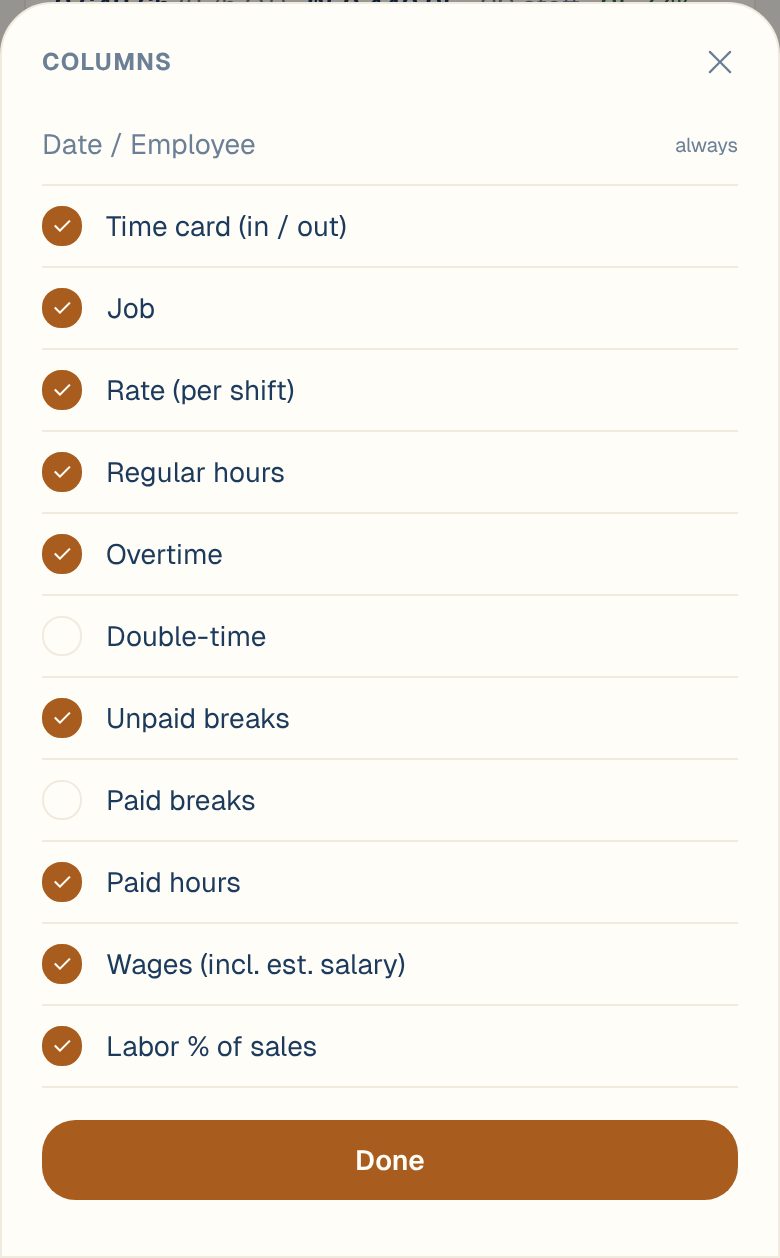
Tap Columns. In Detail, scroll the row of buttons sideways to reach it.
-
Tick the columns you want: Time card (in / out), Job, Rate (per shift), Regular hours, Overtime, Double-time, Unpaid breaks, Paid breaks, Paid hours, Wages (incl. est. salary) and Labor % of sales.
-
Tap Done.
Maitaki remembers your choice on this device.
Common questions
A shift is wrong. Can I edit it here?
No. Correct it in your time clock, or fix your file and import it again. The bottom of the Timesheet says which applies to you. See Fix a missed clock-in or clock-out.
Why can't I pick This year on the Timesheet?
The Timesheet lists every shift, so it shows up to 92 days at a time. For a longer view, use the Labor report.
How do I get the Timesheet into a spreadsheet?
Tap Export. See Export a timesheet.
Is it ready for payroll?
Clear your timesheet flags first. To have every clock-in and clock-out checked for a pay period, see Check if payroll is ready.