Photograph a delivery invoice
Snap the invoice when the delivery comes in. Maitaki reads every line, prices your ingredients and tells you if anything needs a look.
Also known as: scan invoice · receipt · docket · bill · delivery slip · packing slip · take picture · snap · camera · paperwork · upload photo
The quickest way to get an invoice into Maitaki is to photograph it on your phone. You can do several at once, and you don’t have to wait while they’re read.
Take the photos
- Tap the round + button at the bottom of the screen, then Scan Invoice.
- Tap Scan with camera.
- Hold your phone over the invoice. The scanner finds the edges of the page and crops it for you. Snap each invoice, then tap done.
- Check the thumbnails. Tap ✕ on any you don’t want, or add more with Camera, Library or PDF.
- Tap Upload & scan.
Maitaki takes you to the Inbox, where you can watch each invoice being read. You can carry on using the app while that happens.
Lay the invoice flat, in good light, with the whole page in view. Most reading problems come from a crumpled page, a shadow across the totals, or a cut-off corner.
Already have the photos?
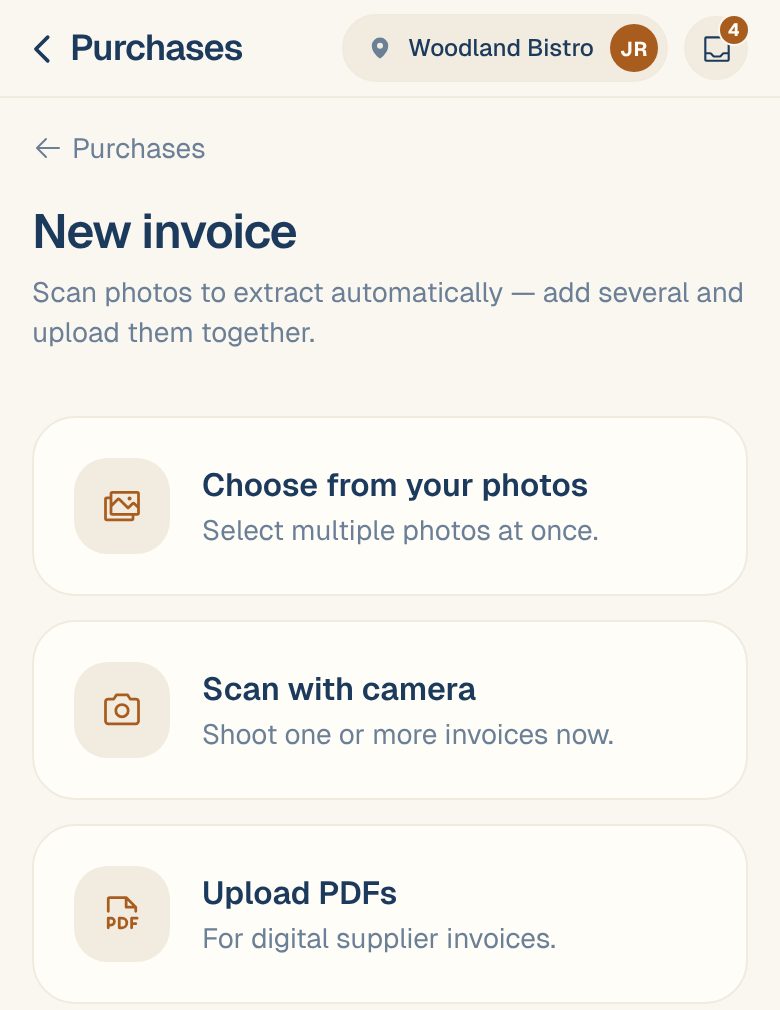
On the same screen, tap Choose from your photos and pick as many as you like. For invoices your vendors email you as PDFs, tap Upload PDFs — a PDF holding many invoices is split into one invoice each, automatically. Or skip the phone altogether and give vendors your invoice email address.
What happens next
Each invoice shows in the Inbox while it’s read, then lands in one of these:
| You’ll see | What it means |
|---|---|
| Ready to verify | Everything checked out. Give it a glance and tap Mark verified. |
| To review | Something needs a look, like a total that doesn’t add up. See What “Needs review” means. |
| Already on file | It’s a copy of an invoice you already have, so it was set aside. |
| Might be a copy | It looks like one you have. Compare them and choose. |
Once an invoice is in, its prices flow into your ingredients, recipes and spend. Verifying confirms it was read right.
Common questions
The invoice has several pages. What do I do?
Support content coming soon. Email support@maitaki.ai and we’ll walk you through it.
I uploaded the same invoice twice.
No harm done. An exact repeat of a file is skipped with Already uploaded — skipped a duplicate. A second photo of the same invoice is spotted by its number and total, and set aside so it never counts twice.
It says it couldn't read the invoice.
Open it from the Inbox and tap Retry. If it still can’t be read, retake the photo flat and in good light. See Fix an upload that failed or got stuck.
I don't see the + button.
You have Viewer access, which can look but not add. Ask an Owner or Admin to change your role.