Guide sorting with AI notes
Notes for the gray areas a hard rule can't cover.
Also known as: guidance · grey area · teach · sorting hint · vendor note · instructions · prompt · explain to ai · custom instructions
Some vendors send their order confirmations and their invoices from the same address, with similar subjects. A hard rule can’t tell them apart, but a person reading them can. An AI note is that person’s know-how written down: plain guidance Maitaki weighs each time it sorts an emailed document.
Notes are guidance, not exact matches. For a sender or subject that should always be sorted the same way, use a hard rule instead.
Add a note
- Open your sorting rules: tap Rules on the summary card at the top of the Inbox, or go to Settings, your location, then Sorting rules.
- Tap New AI note.
- Under Applies to, pick a vendor, or leave it on Whole location.
- Under The note, write what a person would need to know. For example: Their real invoice says INVOICE at the top. An email that says “Order #” with estimated prices is the order confirmation, so skip it.
- Tap Try it. Maitaki sorts recent emailed documents with your note and shows where each would go. Any that would change are marked CHANGES.
- Adjust the note until the results look right, then tap Add note.
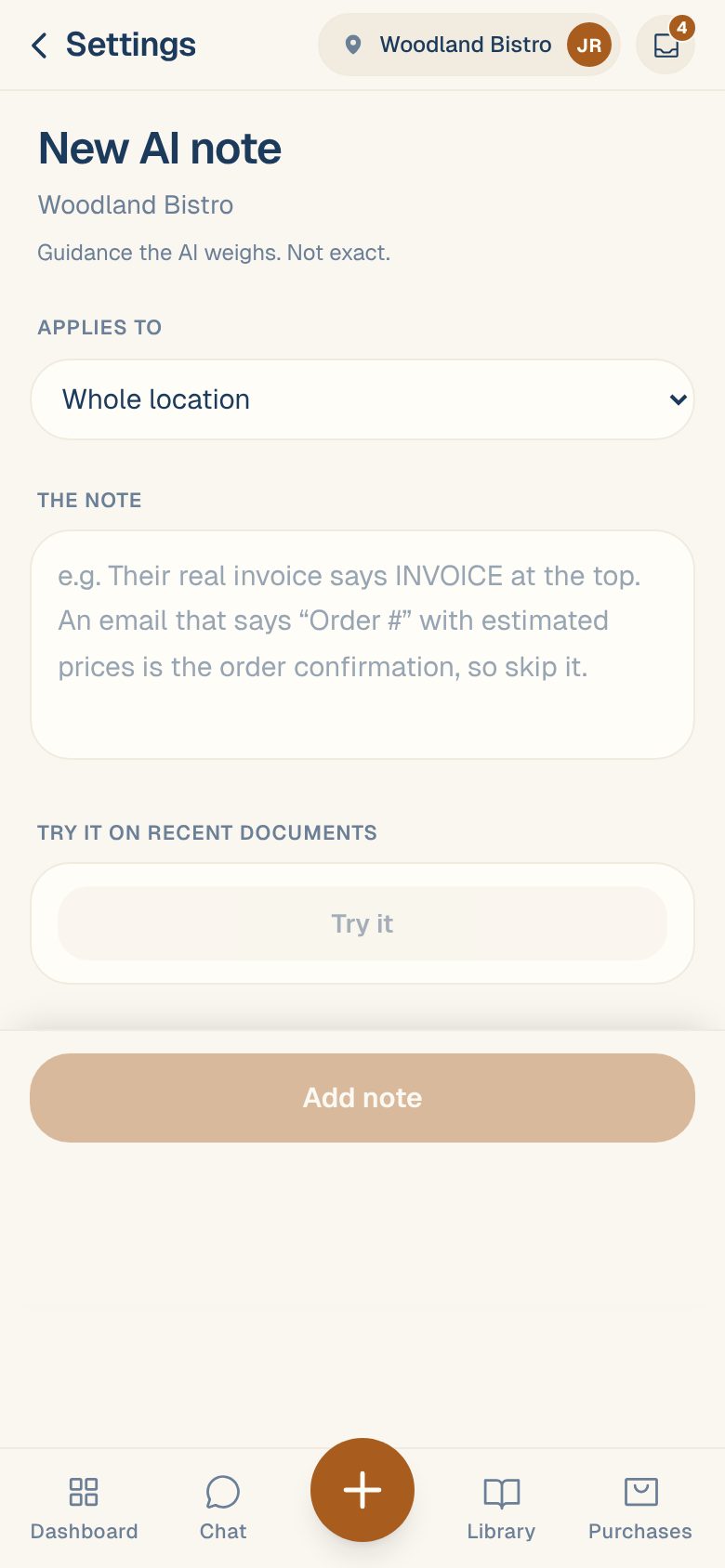
From then on, Maitaki reads the note whenever it sorts a new emailed document. Each note shows how often it was used, like used 4×.
Fix past documents too
Saving a note only affects documents that arrive from now on. To apply it to recent ones as well:
- Open the note from AI notes in your sorting rules.
- Tap Try it.
- If any would change, tap Also change the 3 past ones (for example).
Change, turn off or delete a note
Open it from AI notes.
- Edit the text or Applies to, then tap Save note.
- Turn off stops Maitaki reading it. Turn on brings it back.
- Delete removes it.
Write it like you’d explain it to a new hire. Say what to look for on the page (“says INVOICE at the top”, “has a balance due”) and what to do with it.
Common questions
Which wins, a hard rule or a note?
A hard rule is checked first. If one matches, the document is sorted by the rule and notes aren’t used. Notes help with everything that no rule covers.
Do notes apply to photos and PDFs I upload in the app?
No. Notes guide the sorting of documents emailed to your invoice address. See Get an email address for invoices.