Connect a Valor card terminal
Add your Valor App ID, a terminal's EPI and its App Key. Maitaki fills in the 90 days of history Valor keeps.
Also known as: valorpay · credit card machine · card reader · card machine · epi number · app key · terminal setup · merchant terminal · batch · link terminal
Once your Valor terminal is connected, every card charge, refund and tip shows up in Maitaki, along with your batches and deposits. Maitaki only ever reads from Valor. It can’t change anything there.
You’ll need three things from your Valor portal:
| What | What it is |
|---|---|
| App ID | Belongs to your whole Valor account. You enter it once. |
| Terminal EPI | The number of one terminal. |
| Terminal App Key | That terminal’s own key. Each terminal has its own. |
Connect it soon. Valor keeps only the last 90 days. Anything older than that can’t be brought in later.
Connect it in Maitaki
-
Open the account menu (your location and avatar, top right on a phone; bottom left on a computer) and tap Settings.
-
Tap the location you’re connecting, then Sales under Connections.
-
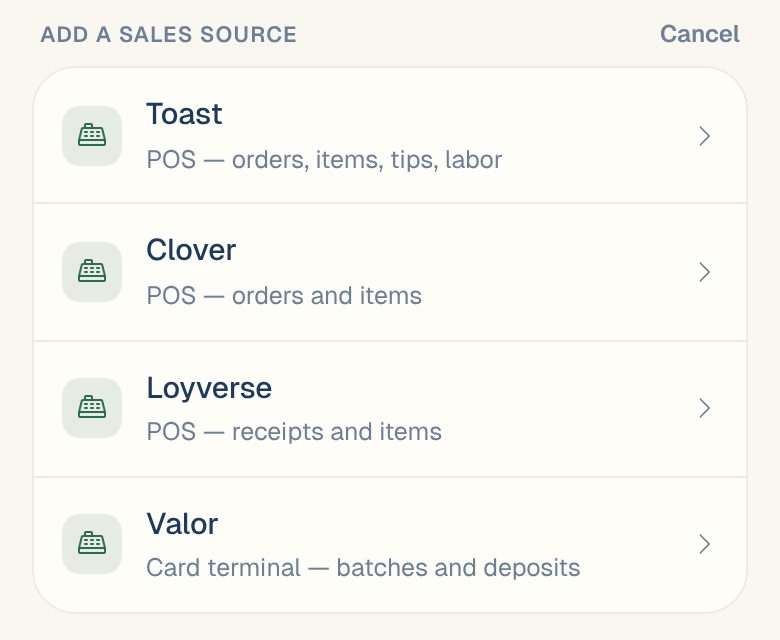
Tap Connect a sales source, then Valor.
-
Give it an Account label so you can tell it apart later.
-
Paste your App ID.
-
Under First terminal, paste the Terminal EPI and Terminal App Key.
-
Tap Test connection. You should see Connected ✓ with your business name.
-
Give the terminal a Terminal label, like Front counter.
-
Tap Save & backfill 90 days.
Maitaki pulls in the last 90 days straight away.
Add another terminal
All terminals on your Valor account already send their charges through the account. Adding a terminal’s key turns on its live view of today’s open batch.
- On the Valor account card, under Terminal keys, tap Add terminal.
- Paste its Terminal EPI and Terminal App Key.
- Tap Save terminal key.
A terminal Maitaki has seen in your batches but has no key for shows no key — live view off. Tap Set key next to it to add one.
Live sales today
For a terminal with a key, the Today so far number on Sales includes the open batch, so you see card sales as they happen. A green dot next to Today so far means it’s live.
How tax works with Valor
A card terminal charges amounts with the tax inside. Add your sales tax rate so Maitaki can take the tax out and show your real sales. See Set your sales tax rate and How estimated tax works.
Common questions
I got a new key for a terminal. How do I change it?
On the Valor account card, under Terminal keys, tap Replace next to that terminal. Paste the new Terminal App Key and tap Save key. Other terminals and the App ID stay as they are.
How do I change the App ID?
Tap Update keys on the Valor account card, paste the new App ID and tap Save. Terminal keys aren’t affected.
I also use a POS. Can Maitaki check one against the other?
Yes. When a location has a POS and a Valor terminal, each day gets a Card check that matches every card receipt to its charge. See Check your POS against your card terminal.
Can I disconnect Valor?
You can Pause it from the account card, which stops new updates. Your history stays. Tap Resume to start again. To remove it completely, email us.