Get an email address for invoices
Your location's own address. Forward invoices to it, or give it to vendors.
Also known as: inbound email · forward address · mailbox · email import · in.maitaki.ai · vendor email · auto forward · ap email · accounts payable · e-mail · supplier emails · send invoices by email
Each location can have its own email address for invoices, ending in @in.maitaki.ai. Anything sent to it lands in that location’s Inbox and is read like an upload, so invoices your vendors email you never need to touch your phone.
A Manager, Admin or Owner sets the address up. After that, anyone on the team can see and copy it.
Set up the address
- Open the account menu (your location and avatar, top right on a phone; bottom left on a computer) and tap Settings.
- Under Locations, tap the location the invoices are for.
- Under Connections, tap Email for invoices. Until it’s set up, the row says Not set up.
- Tap Set up email import.
Your address appears with a copy button next to it. Tap the copy button to copy it.
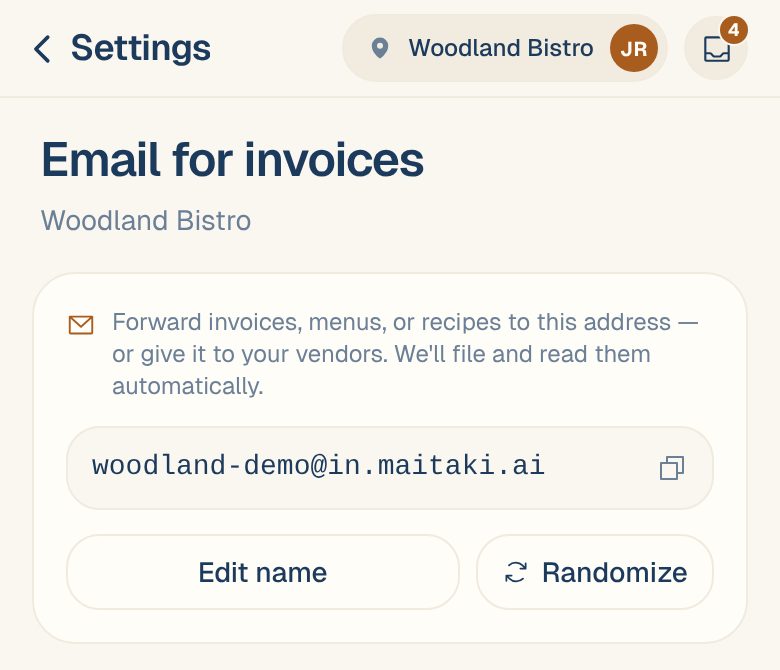
Choose a name you’ll remember
The address starts as your location’s name plus a few random characters. To change it:
- On the same screen, tap Edit name.
- Type the name you want, like mainstreet-kitchen. It can be 3 to 40 letters, numbers or hyphens.
- Wait for ✓ … is available. If the name is taken or reserved, it says so.
- Tap Save.
Want a fresh one instead? Tap Randomize for a new address with different random characters.
Changing the name replaces the old address straight away. Mail sent to the old one won’t arrive, so give vendors the new address and update any forwarding you’ve set up.
Start sending invoices to it
- Give it to your vendors and ask them to send invoices there, or add it alongside your own address.
- Forward invoices you receive in your own mailbox. Forward the whole email; you don’t need to tidy it up.
- Set up automatic forwarding in your email account for messages from your vendors.
Use each location’s own address. An email lands only in the Inbox of the location the address belongs to.
What Maitaki does with each email
- Every attachment becomes its own document in the Inbox. A PDF holding many invoices is split into one invoice each.
- An email with no attachment is kept as a document itself, for vendors who put the invoice in the body of the email.
- Each one shows in the Inbox as Emailed, with the sender’s name. Invoices that came by email carry an ✉ Email badge in Purchases → Invoices.
Maitaki then works out what each document is. Invoices are read and checked like any upload. Statements and order confirmations are kept but never counted as spend. Anything Maitaki isn’t sure about waits in the Inbox as What is it?, with its best guess marked LIKELY, for you to choose. See Tell Maitaki what a document is.
Common questions
Can I stop Maitaki reading emails it doesn't need, like newsletters?
Yes. A Manager can add sorting rules, such as skipping everything from one sender or with a certain subject. See Sorting rules for emailed documents.
An email I forwarded isn't in the Inbox.
Check that you sent it to the address shown under Email for invoices right now, at the right location. If the name was changed, mail to the old address doesn’t arrive. Also check the All and Skipped views in the Inbox, and the Emailed source filter.
I can see the address but can't change it.
Setting up and changing the address needs a Manager, Admin or Owner at that location. Anyone can copy it.
The vendor emailed the same invoice twice.
The copy is spotted by its vendor, number and total and set aside, so it never counts twice. See Duplicate invoices.