Upload PDF invoices, even big batches
One PDF or a stack of them. A file holding many invoices splits itself into one invoice each.
Also known as: pdf · attach file · digital invoice · multi page · combined pdf · split · batch · bulk upload · e-invoice · emailed invoice · download · back catalogue · drag and drop
When a vendor sends invoices as PDFs, upload the files themselves instead of photographing a printout. You can pick several PDFs at once, and a single PDF that holds dozens of invoices is split up for you.
Upload from your phone
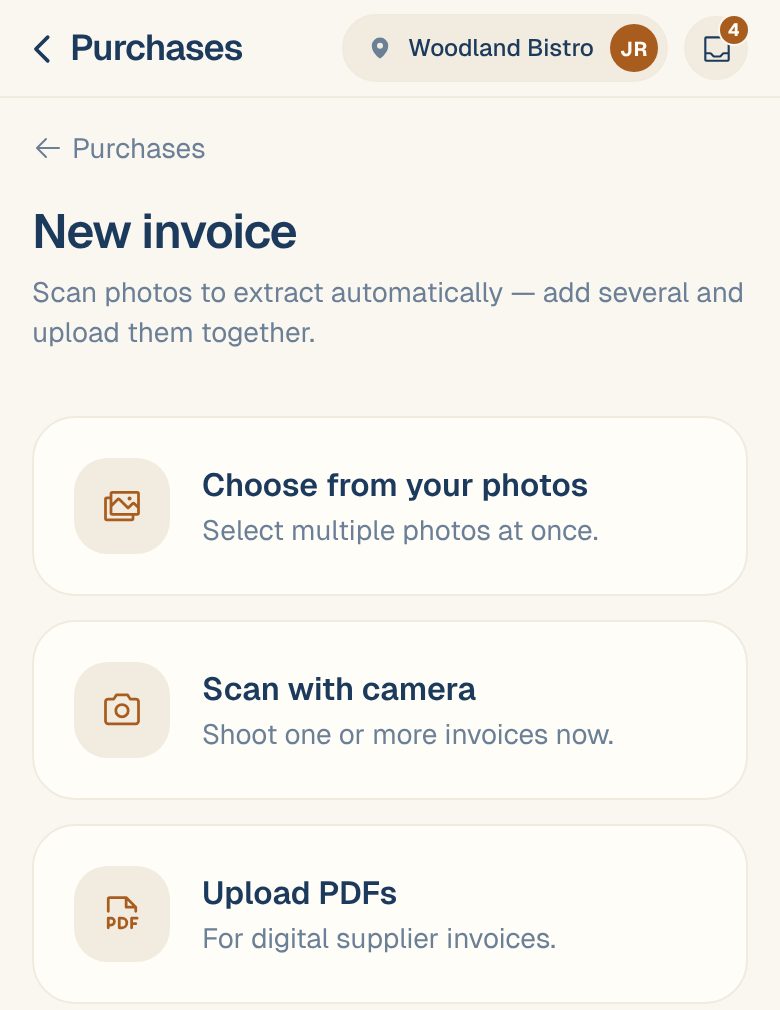
- Tap the round + button at the bottom of the screen, then Scan Invoice.
- Tap Upload PDFs.
- Pick one or more PDFs from your phone’s files.
- Check the tray. Tap ✕ on anything you picked by mistake, or add more with PDF, Camera or Library.
- Tap Upload & scan.
Maitaki takes you to the Inbox. Leave the app open until each upload has finished sending. After that, reading carries on even if you close the app.
Upload from a computer
- Click New at the bottom left, then Scan Invoice.
- Click Upload PDFs and choose your files, or drag the PDFs anywhere onto the page.
- Click Upload & scan.
Downloading invoices from a vendor portal? Upload the files exactly as they come. There’s no need to merge or split them first.
What happens to a PDF
- A PDF with one invoice becomes one invoice, however many pages it has.
- A PDF with many invoices is split into one invoice per invoice number. Pages that share a vendor and invoice number stay together.
A split file shows in the Inbox as one card, named after the file with the number of invoices inside, like invoices-march.pdf · 24 invoices. While it works you’ll see Scanning pages, then Reading invoices, with a count. Open the card to work through what came out of it. See Work through a file of many invoices.
Common questions
My paper invoice has several pages. How do I upload it?
Support content coming soon. Email support@maitaki.ai and we’ll walk you through it.
I uploaded the same PDF twice.
The second one is skipped before it’s read, and you’ll see Already uploaded — skipped a duplicate of with the file name. This works for a whole batch PDF too. See Duplicate invoices.
The batch includes invoices I'd already uploaded.
That’s fine. An invoice that’s clearly one you already have is set aside, and one that only might be is held until you decide. Either way it isn’t counted twice. You’ll find them on the file’s Done and Copies tabs.
A big file says "Stuck" or "Couldn't split".
Open it and tap Resume reading this file. It picks up where it stopped. See Fix an upload that failed or got stuck.