Your roster
Everyone on staff at a location, their department, and the pay Maitaki uses to cost their hours.
Also known as: staff list · employees · team list · crew · inactive staff · employee list · people · wage list · headcount
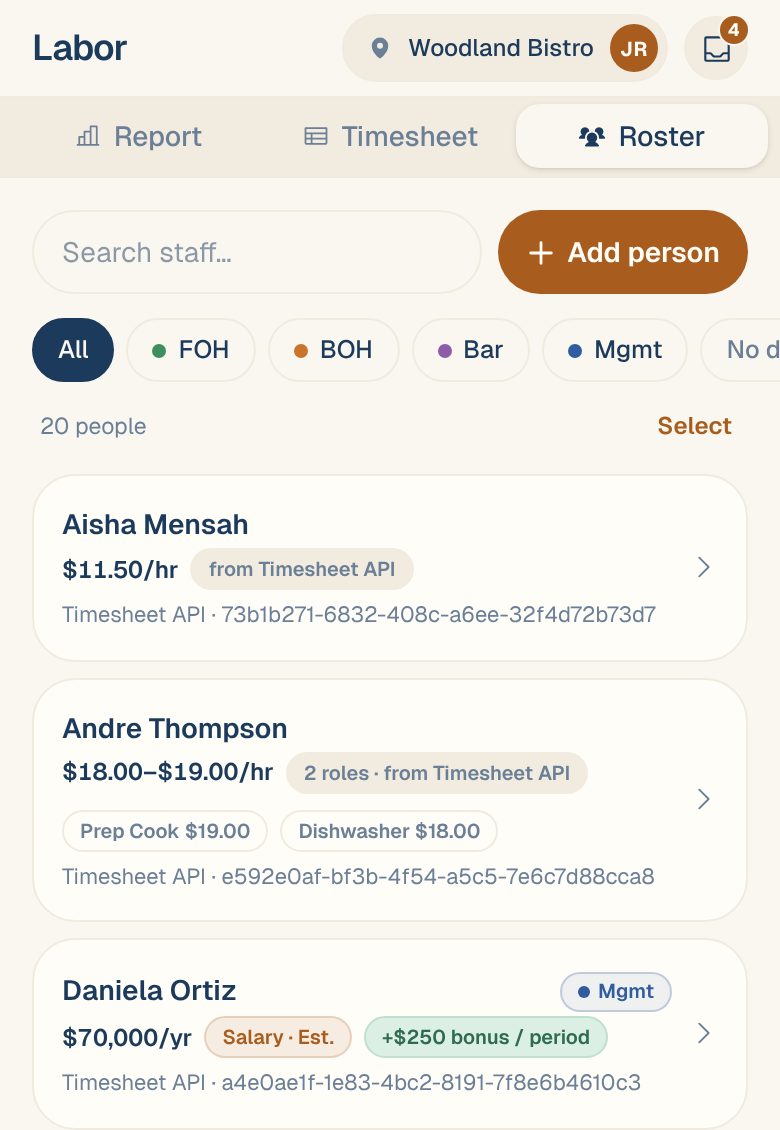
The roster lists everyone who works at a location: people from your timesheets and anyone you’ve added by hand. Each row shows the pay Maitaki uses to cost their hours, and where that pay comes from.
Open the roster
-
From the Dashboard, tap the Labor card header.
-
Tap the Roster tab.
-
Tap anyone to open their pay page, where you can change their pay, add a bonus or set their department.
Type in Search staff… to find someone by name or timesheet ID.
What each row tells you
| You’ll see | It means |
|---|---|
| from Toast, from Timesheet API | Their hours are costed at the wage your timesheet sends. |
| Override | Pay set in Maitaki. It replaces the timesheet wage for costing from its start date. The timesheet wage is shown crossed out. |
| Salary · Est. | They’re on a salary, spread across your pay periods. |
| 2 roles | They work more than one job, like prep cook and dishwasher. Each role’s rate shows underneath. |
| +$250 bonus / period | A recurring bonus, added on top every pay period. |
| No wage · hours only | Their hours count, but there’s no wage to cost them. Add a pay change to fix it. |
| Added in Maitaki | Someone you added by hand. Not linked means they aren’t matched to anyone in your timesheets yet. |
| · inactive | They’re no longer active in your timesheets. |
To change anyone’s pay, see Set or change someone’s pay.
Filter by department
If your location has departments, a row of filters sits under the search box: All, one for each department, and No department. Tap one to see only those people. To set departments up, see Set up departments.
Common questions
Someone who left is still on the list. Can I hide them?
People your timesheet marks as inactive are hidden already. Tap Show inactive at the bottom of the list to see them, and Hide inactive to hide them again.
An owner or GM never clocks in. How do I add them?
Tap Add person. See Add someone who isn’t in your timesheets.
Why can't I see the roster?
Only Managers, Admins and Owners can see pay. Everyone else sees Only managers can see pay at this location.
The roster says "No one yet".
No timesheets have come in for this location yet. Connect a labor source first: Connect Toast for labor, Import a timesheet or Send timesheets with the Timesheet API.