Change someone's role or locations
Promote someone, limit them to certain locations, or give them a different role at one location.
Also known as: promote · demote · edit permissions · make admin · restrict locations · access level · upgrade user · make manager · read only · change access
You can change what someone can do at any time. Owners and Admins change anyone’s role and locations from Members. A Manager can change the role of people who only have access to their location.
Not sure which role to pick? See Roles: who can do what.
Change a role (Owner or Admin)
- Open the account menu (your location and avatar, top right on a phone; bottom left on a computer) and tap Settings.
- Tap Members, then tap the person.
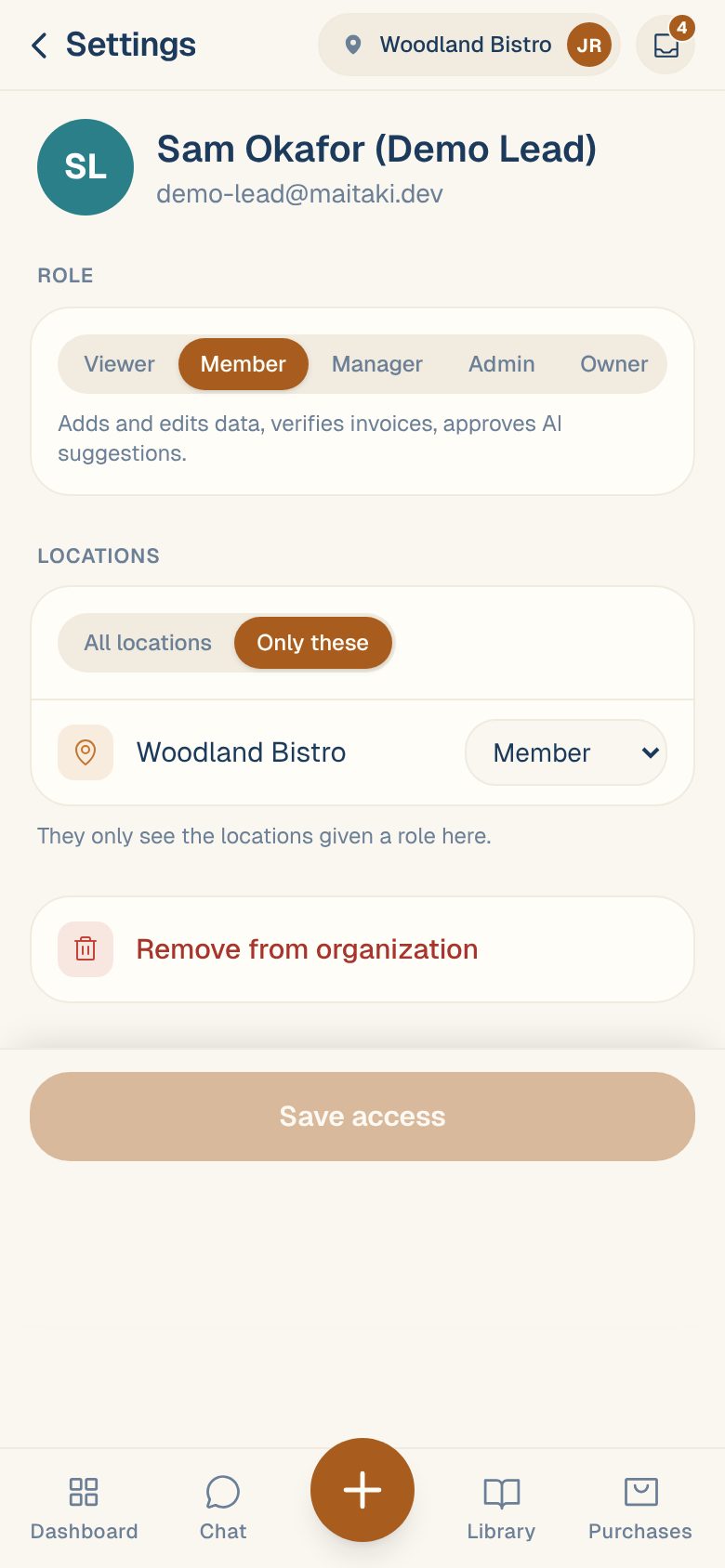
- Under Role, tap the new role. The line under it says what that role can do.
- Tap Save access. You’ll see Saved.
Who can change whom:
- An Admin can give someone the Viewer, Member or Manager role, but can’t change another Admin or the Owner. They’ll see Only the owner can change an owner or admin.
- The Owner can give any role, including Admin and Owner.
- Nobody can change their own access. You’ll see You can’t change your own access.
Choose which locations they can open
Admin and Owner always cover every location. For Manager, Member and Viewer, you choose:
- On the person’s page, under Locations, tap All locations or Only these.
- With Only these, set a role next to each location they should open. Leave the rest on No access.
- Tap Save access.
They only see the locations given a role. If you pick Only these without giving any location a role, you’ll see Give them at least one location, or choose All locations.
Give a different role at one location
Someone can be a Member everywhere and a Manager at one place.
- On the person’s page, keep All locations.
- Next to the location, change Same to the role they should have there.
- Tap Save access.
A role set on one location overrides their role there.
Change a role at your location (Manager)
- Go to Settings, tap your location, then Team at this location.
- Under Only this location, tap the person.
- Under Role at your location, tap Viewer, Member or Manager.
- Tap Save.
People under Across the organization have access to more than your location, so only an Admin or the Owner can change them in Settings → Members.
Common questions
I don't see Members in Settings.
Only Admins and the Owner can open Members. If you’re a Manager, use Team at this location instead.
How do I make someone the Owner?
Only the current Owner can. On the person’s page, tap Owner under Role, then Save access.
How do I take away their access completely?
See Remove someone.