Connect Toast for labor
Pull employees, jobs and time entries from Toast. If Toast is already connected for sales, one tap reuses that connection.
Also known as: toast labor · time clock integration · sync labour · toast api · toast timesheets · toast payroll · toast employees · clock ins · labor feed
If your staff clock in on Toast, Maitaki can pull in your employees, their jobs and every time entry, then cost each shift and show labor as a % of sales. Maitaki only ever reads from Toast. It can’t change anything there.
If Toast is already connected for sales
-
Open the account menu (your location and avatar, top right on a phone; bottom left on a computer) and tap Settings.
-
Tap your location, then Labor under Connections.
-
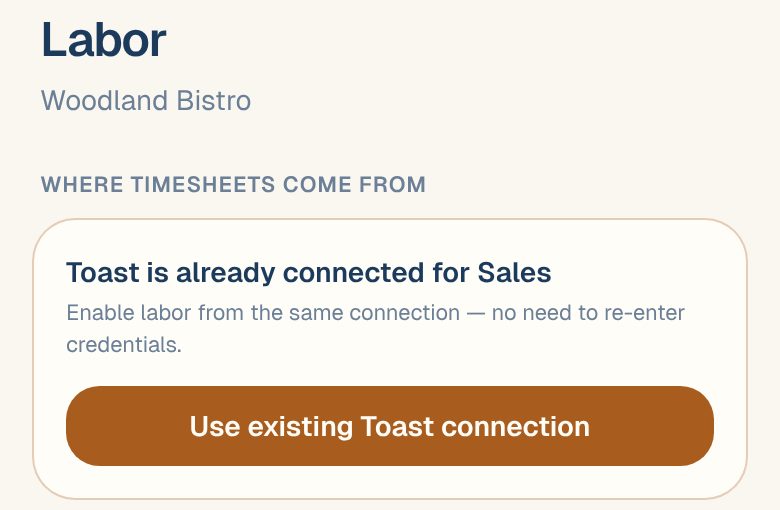
Under Where timesheets come from, you’ll see Toast is already connected for Sales.
-
Tap Use existing Toast connection.
There’s no need to enter your credentials again. Maitaki starts filling in your labor history straight away.
If Toast isn’t connected yet
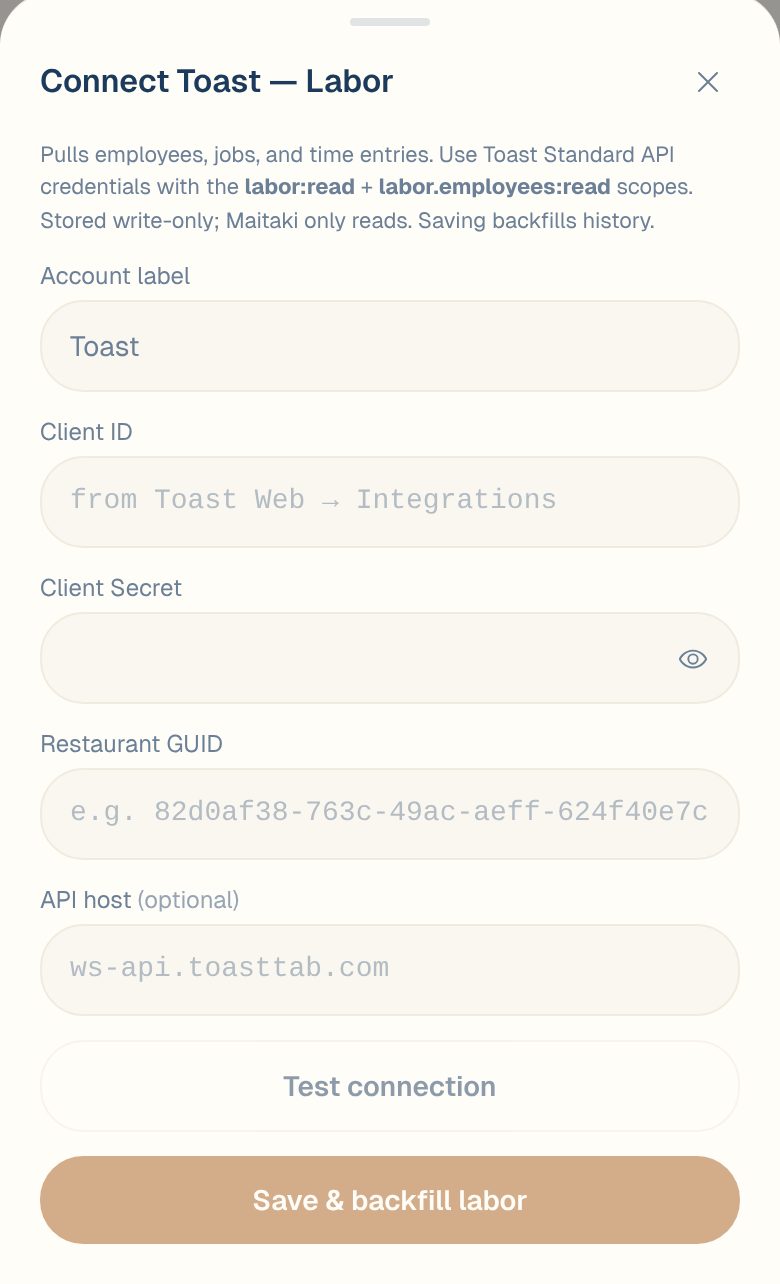
You’ll need Toast Standard API credentials with the labor:read and labor.employees:read scopes, from Toast Web → Integrations. You’ll also need your Restaurant GUID. If you’re connecting Toast for sales too, Connect your Toast POS explains where to find each one.
-
In Settings, tap your location, then Labor.
-
Tap Connect Toast.
-
Give it an Account label, or leave it as Toast.
-
Paste your Client ID, Client Secret and Restaurant GUID.
-
Leave API host blank.
-
Tap Test connection. You should see Connected ✓ with your restaurant’s name and timezone.
-
Tap Save & backfill labor.
Keep the secret private. Maitaki stores it write-only, which means nobody, including us, can view it again after you save it.
Check it’s working
Your Toast labor source appears under Where timesheets come from:
| You’ll see | It means |
|---|---|
| Active | It’s connected and updating. Synced shows the last date it pulled new timesheets. |
| ⏳ Backfilling — reached a date | Older history is still coming in. |
| ✓ Full history synced | All your history is in. |
| Paused | It’s not updating. Tap Resume to start it again. |
| Error | The last update failed. The reason shows underneath. |
Maitaki pulls new timesheets from Toast every day. To pull them in right away, tap Sync now.
Common questions
Do I need to connect Toast for labor if it's already connected for sales?
Yes. Sales and labor are turned on separately. If Toast is already on Sales, Use existing Toast connection does it in one tap.
Can I pause labor updates?
Yes. Tap Pause on the source. Your history stays. Tap Resume to start again.
We don't use Toast for timesheets.
You can upload a CSV from your time-tracking system, or have it send timesheets automatically. See Import a timesheet and Send timesheets with the Timesheet API.