Let Maitaki verify invoices for you
The auto-verify settings, and what always waits for a person.
Also known as: automatic approval · auto approve · hands off · auto verify · autoverify · skip review · automatic · approve automatically
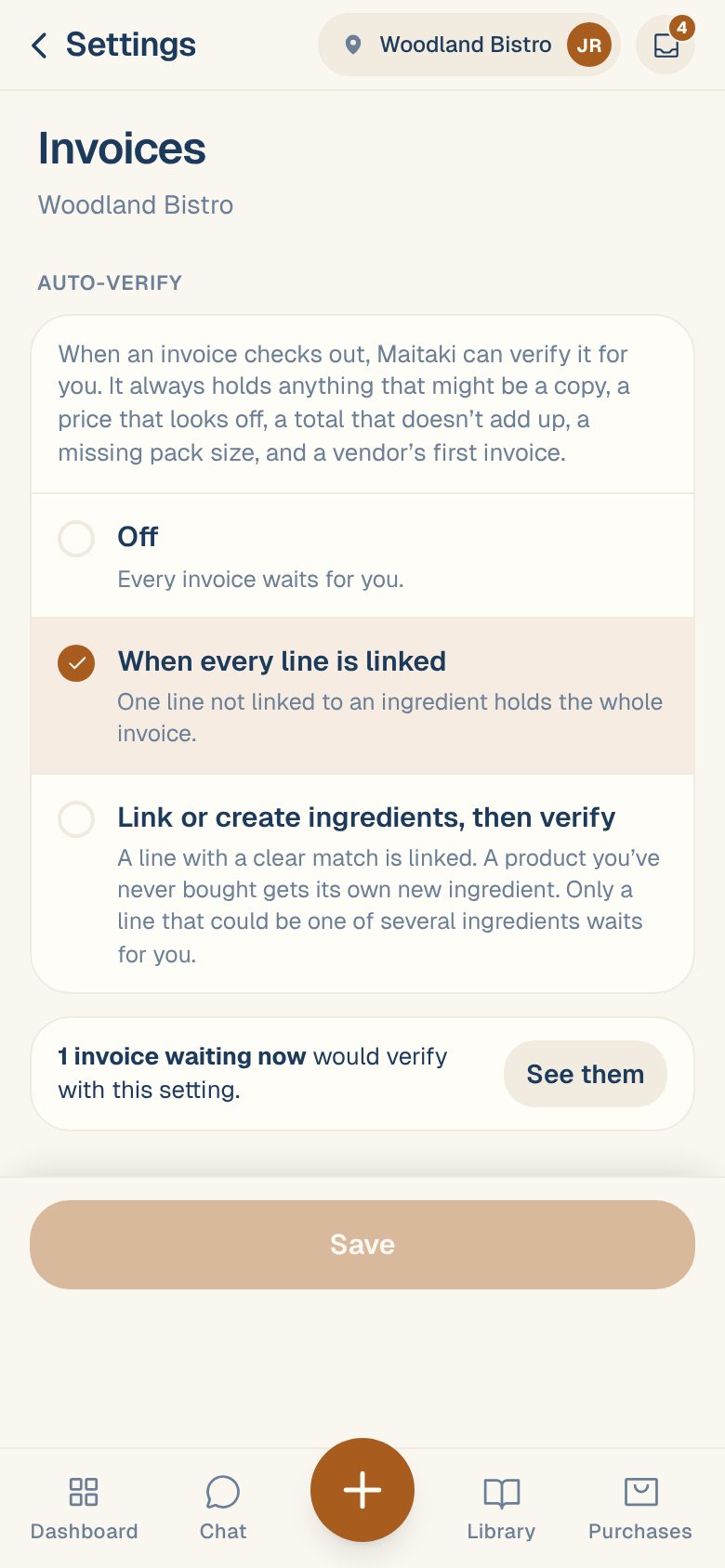
When an invoice passes every check, Maitaki can verify it for you, so you only spend time on the ones that need a person. Each location has its own setting, and a Manager, Admin or Owner can change it.
Choose a setting
- Open the account menu (your location and avatar, top right on a phone; bottom left on a computer) and tap Settings.
- Under Locations, tap the location.
- Under Connections, tap Invoices.
- Pick one of the three options under Auto-verify.
- Tap Save.
| Option | What happens |
|---|---|
| Off | Every invoice waits for you. |
| When every line is linked | The usual setting. An invoice that passes every check is verified, as long as every line is already linked to an ingredient. One line not linked holds the whole invoice. |
| Link or create ingredients, then verify | Maitaki links a line when the match is clear, and makes a new ingredient for a product you’ve never bought. Only a line that could be one of several ingredients waits for you. |
The new setting applies to invoices that arrive from now on.
What always waits for a person
Whatever you choose, Maitaki never verifies these on its own:
- An invoice that fails any check, such as a price that looks off, a total that doesn’t add up or a missing pack size. See What “Needs review” means.
- Anything that might be a copy of an invoice you already have.
- A vendor’s first invoice at this location.
- An invoice with no printed total.
- An invoice someone has already edited by hand, or re-opened after it was verified.
- A line Maitaki thinks might be a product you already buy from that vendor, until someone answers.
These wait in To review as usual.
Verify the ones already waiting
Invoices that were waiting before you changed the setting stay where they are. If some of them would pass with your saved setting, you’ll see N invoices waiting now would verify with this setting.
- Tap See them. The list shows each invoice, and which lines it would link or which new ingredients it would create.
- Tap Verify N to verify them. Nothing changes until you tap it.
Some may finish a little later, after a quick price check on lines that were newly linked.
Tell which invoices were verified for you
In Purchases → Invoices, an invoice Maitaki verified shows Auto-verified instead of Verified. Each one is also recorded in Activity. See See what changed in Activity.
Start with the usual setting. When every line is linked only verifies invoices where every product already has a home. Move to Link or create ingredients, then verify once you’re happy with how Maitaki matches your products.
Common questions
An invoice was auto-verified and it's wrong.
Open it and tap Re-open for review. Fix it, then verify it yourself. A re-opened invoice won’t be verified automatically again. See Re-open or delete an invoice.
The options are greyed out and it says "Managers can change this."
Your role at this location is Member or Viewer. Ask a Manager, Admin or Owner to change the setting. See Roles: who can do what.
Does auto-verify create ingredients I didn't ask for?
Only with Link or create ingredients, then verify. Those ingredients are named from the invoice line. If one turns out to be the same as an ingredient you already had, you can merge them. See Merge duplicate ingredients.